
Hey Champs! Need to refresh your social media account information in Social Champ? Re-syncing allows Social Champ to fetch the latest account details from the connected social network without requiring you to disconnect and reconnect the account. This can help update profile information, resolve minor synchronization issues, and ensure your account remains properly connected and up to date. You can also review your account’s connection health and status during the process.
Follow the steps below to re-sync your social media account and verify its connection status.
1. Sign in to your Social Champ account and navigate to your dashboard.
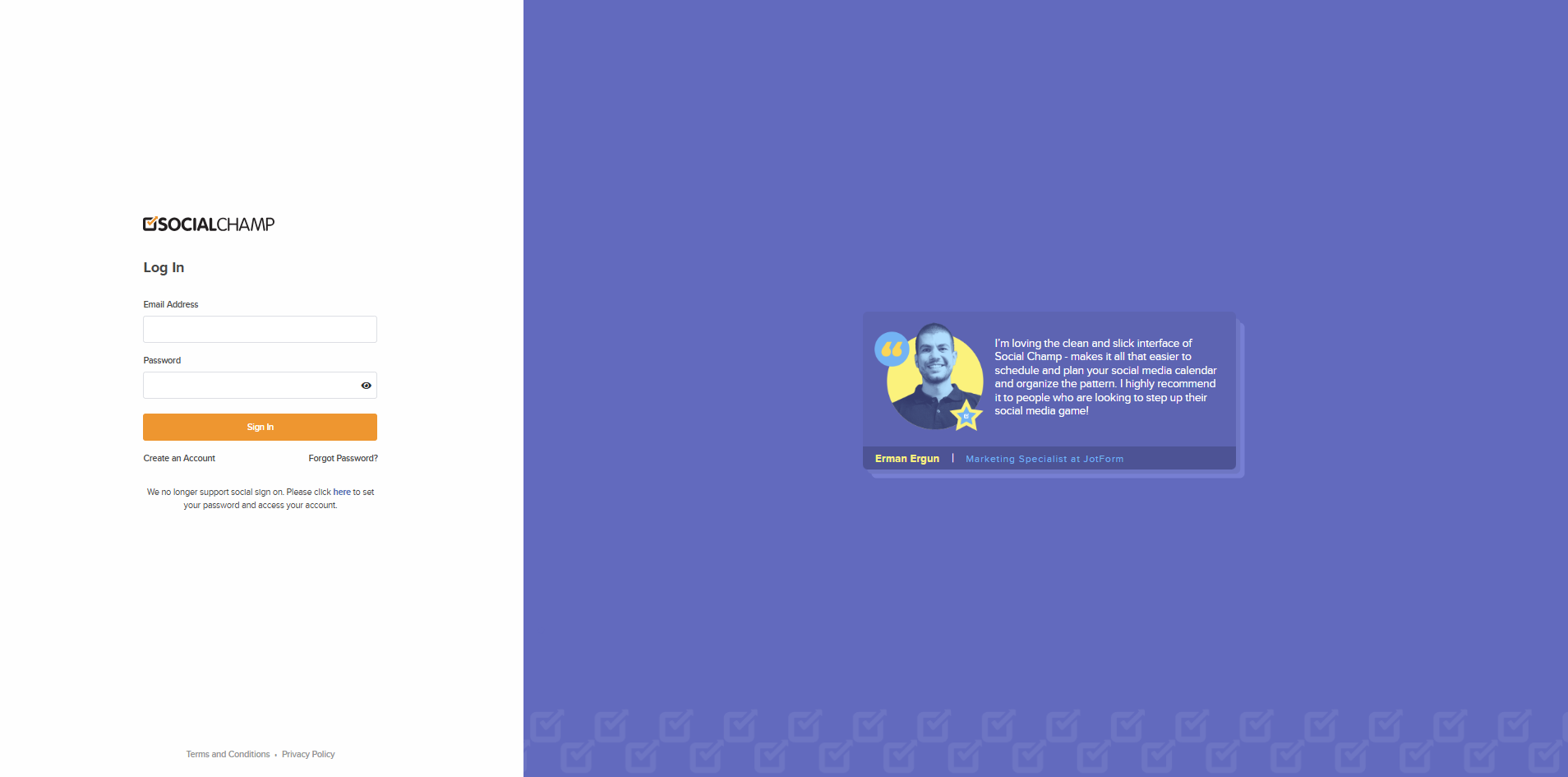
- You will land on the Publish dashboard after logging in.
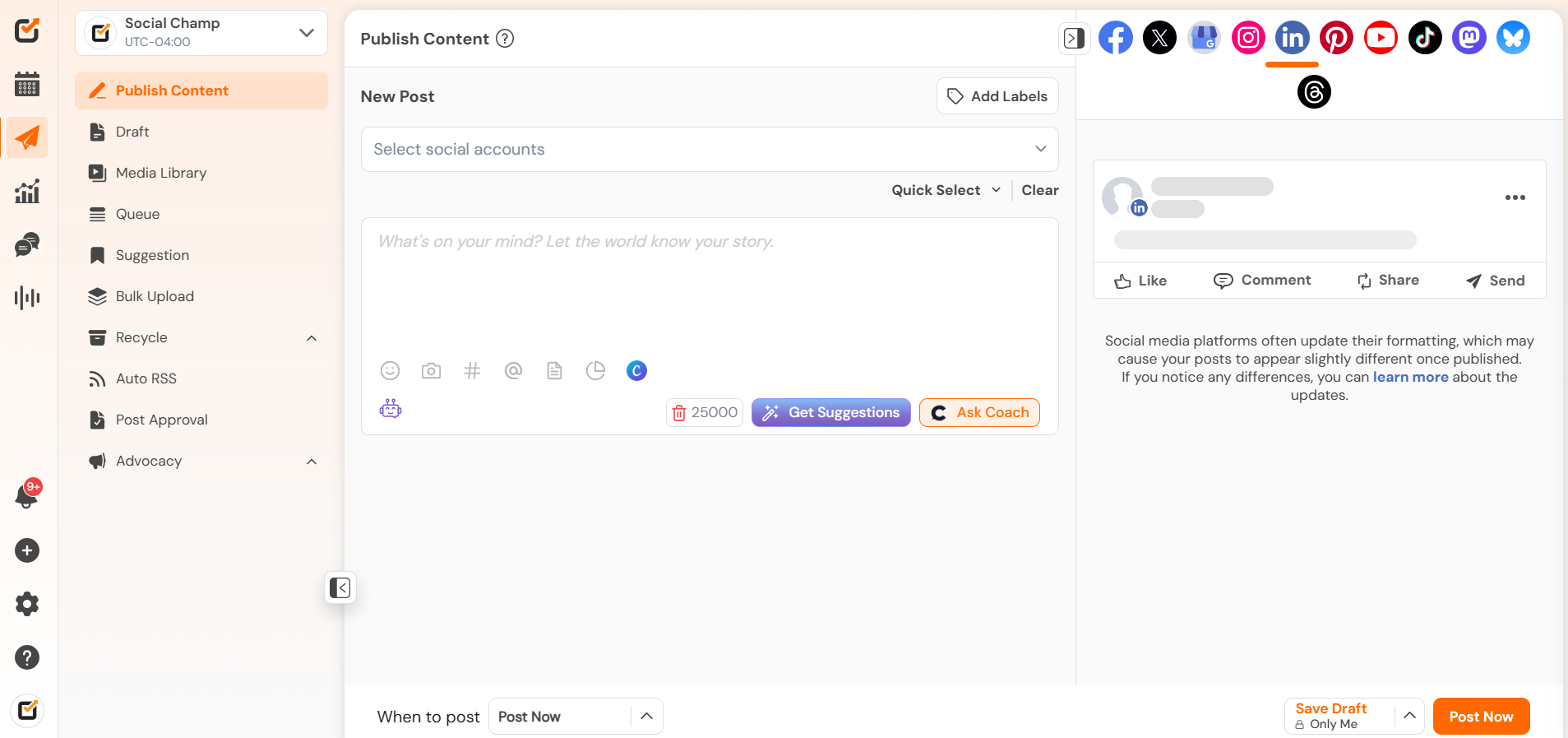
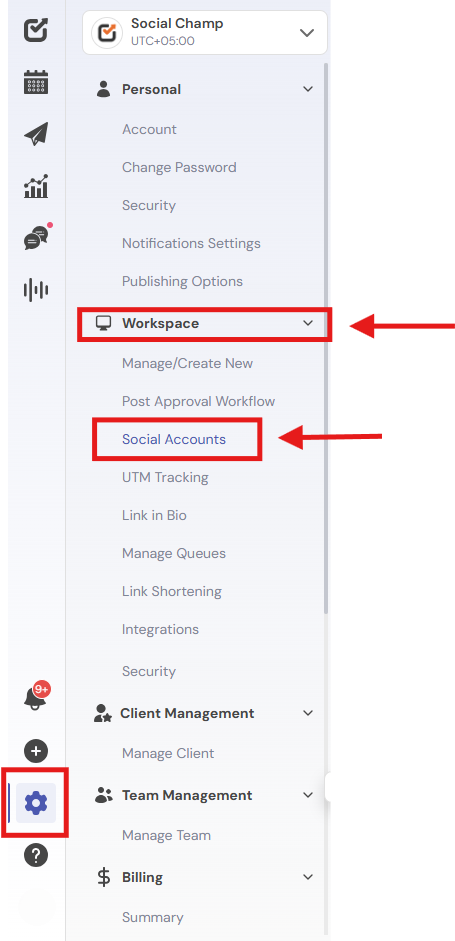
2. From the dashboard: Click the Settings icon located at the bottom-left corner of the screen. Select Manage Accounts from the menu. This section displays all your connected social media accounts across workspaces.
3. Before re-syncing, you can use the Health Summary section to quickly review the status of your connected accounts:
- Active Accounts – Accounts that are properly connected and functioning normally.
- Expiring Soon – Accounts whose authentication tokens will expire soon and may require attention.
- Expired Accounts – Accounts with expired tokens that need to be reconnected.
- Locked Accounts – Accounts that require action on the social network before they can be used again.
The Health Summary helps you identify accounts that may need re-syncing or reconnection.

4. To find a specific account more easily, use the available filters:
- Token Status – Filter accounts based on their connection status.
Network – Filter by social media platform (Facebook, Instagram, LinkedIn, X, Pinterest, etc.).
Workspace – View accounts belonging to a specific workspace.
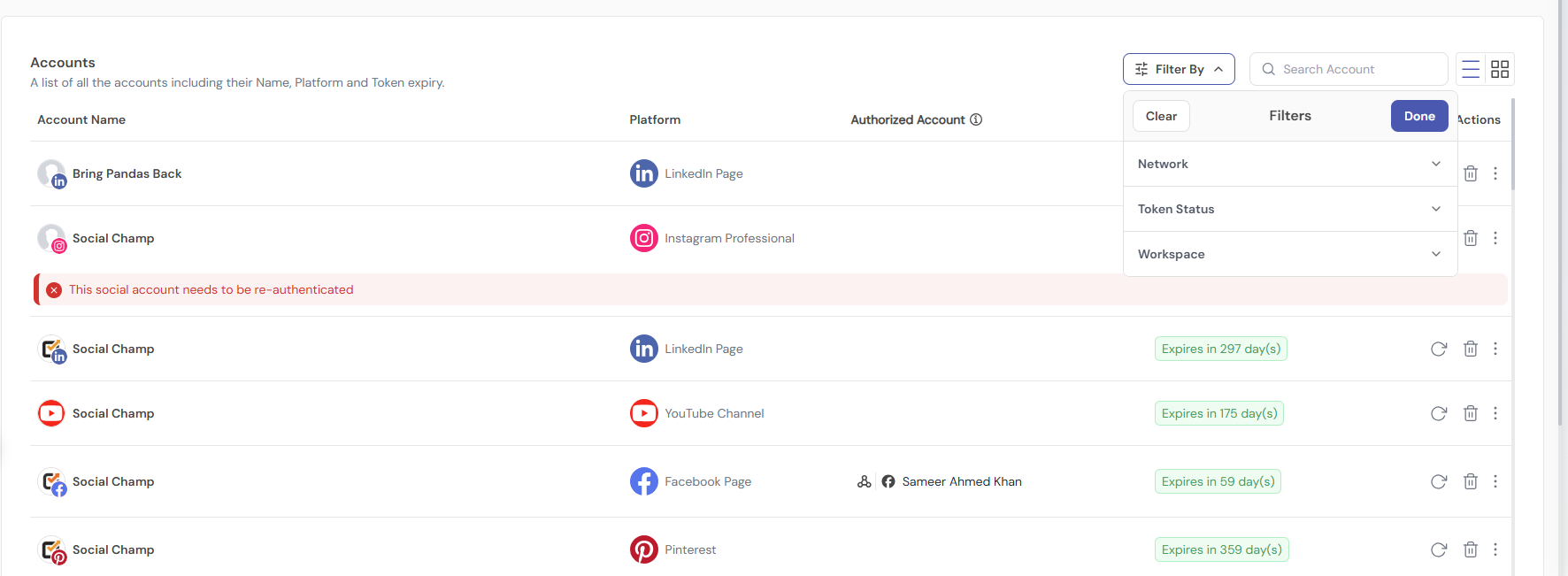
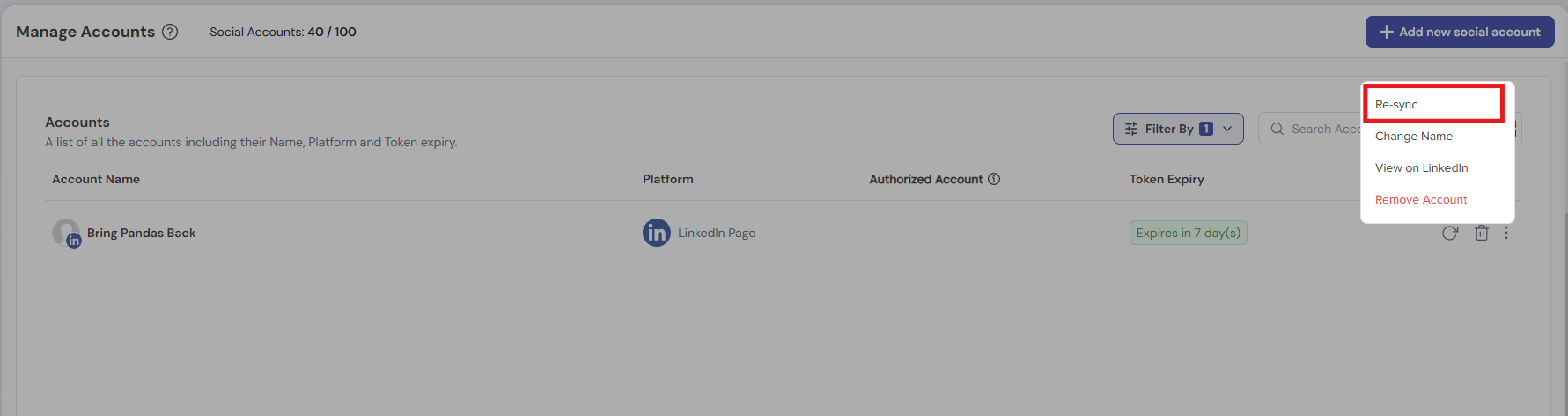
Once you’ve located the account you’d like to update, click the three-dot menu (⋮) beside the account and select Re-sync. Social Champ will then initiate the synchronization process and fetch the latest account information from the connected social network. This may take a few moments to complete.
Additional Tips:
- Re-sync Failed Accounts: If an account is showing errors or has lost connection, re-syncing is often the best solution.
- Reconnect if Needed: If re-syncing doesn’t resolve the issue, you may need to disconnect and reconnect the account in your Social Champ account.
Great Work! By following these steps, you can easily ensure your social media accounts stay synced and up-to-date with Social Champ. 🙂
Please note: Resyncing an Account is not the same as Reconnecting. You can learn about Re-connect here.
Here is a video tutorial:
Get the Support You Need
Having trouble connecting your Mastodon account? Do you have a question about publishing or scheduling? We’re here to support you every step of the way. Email us at [email protected], and we’ll get back to you.
Hey Champ! Ready to start scheduling your YouTube videos and Shorts like a pro? Let’s get your channel synced with Read more
Hey Champs! Social Champ now integrates with Mastodon, allowing you to manage your decentralized social network seamlessly. Let's get started Read more
Hey Champs! Are you looking for a way to schedule and automate your YouTube videos? Well, look no further, Social Read more
Hey Champs! Linking an Instagram Business account to a Facebook page lets you enjoy all features offered by Social Champ Read more