
The Model Context Protocol (MCP) allows compatible AI tools to securely connect with Social Champ and help you manage your social media workflow. Once connected, your AI assistant can help you find connected channels, review scheduled or draft posts, create content, and perform other Social Champ actions with your approval.
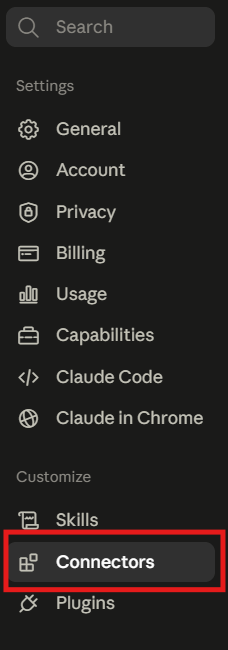
- Open your AI tool and navigate to the MCP server configuration settings.
- Add Social Champ as an MCP server using the following URL: https://mcp.socialchamp.com/mcp
Save the MCP server configuration in your AI tool by clicking on Add.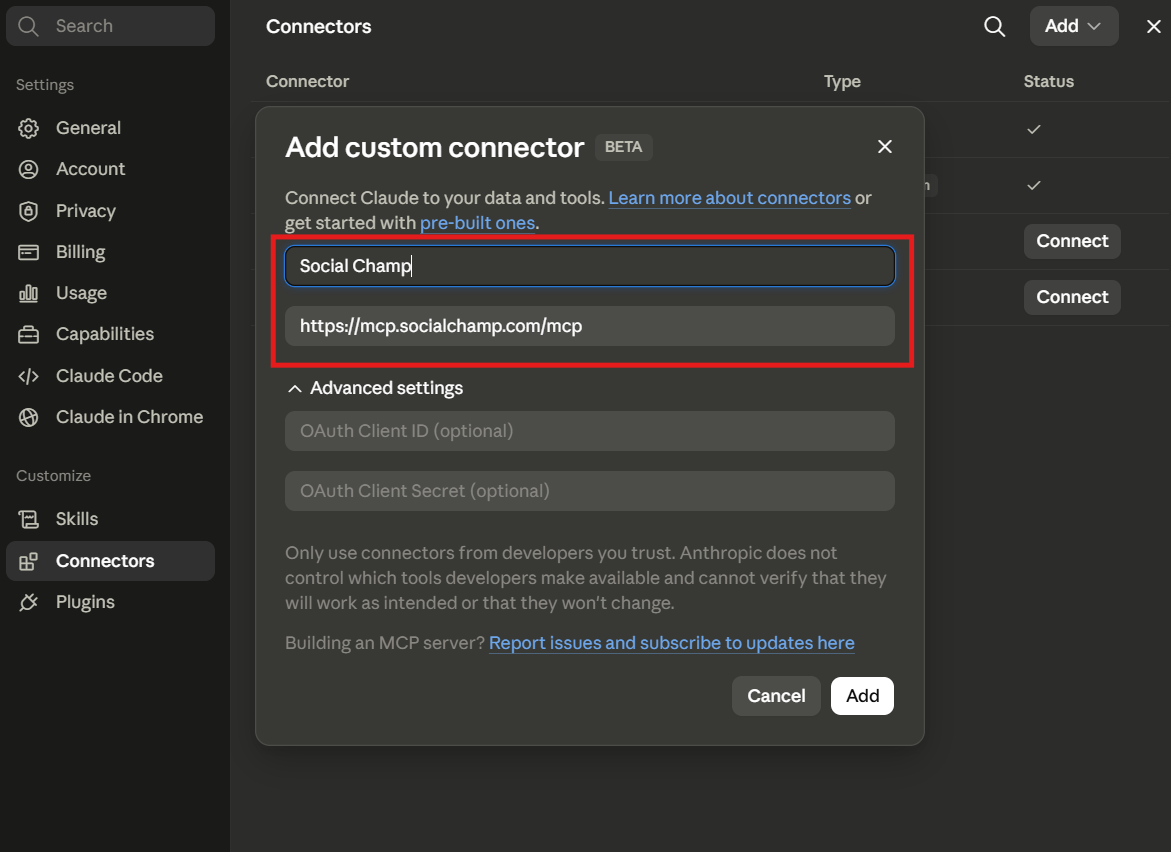
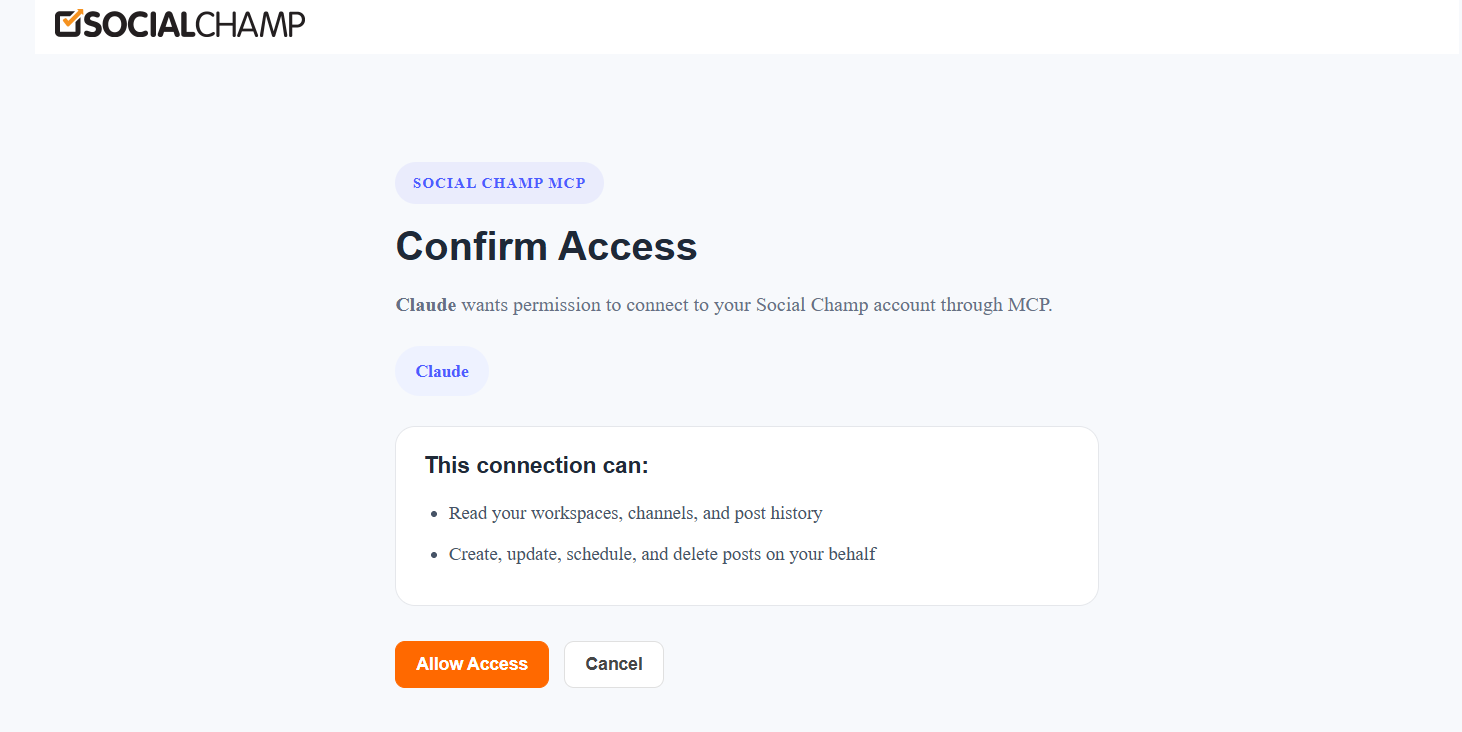
- Review the access request and click Approve to authorize the connection.
- Return to your AI tool and verify that the connection has been established successfully.
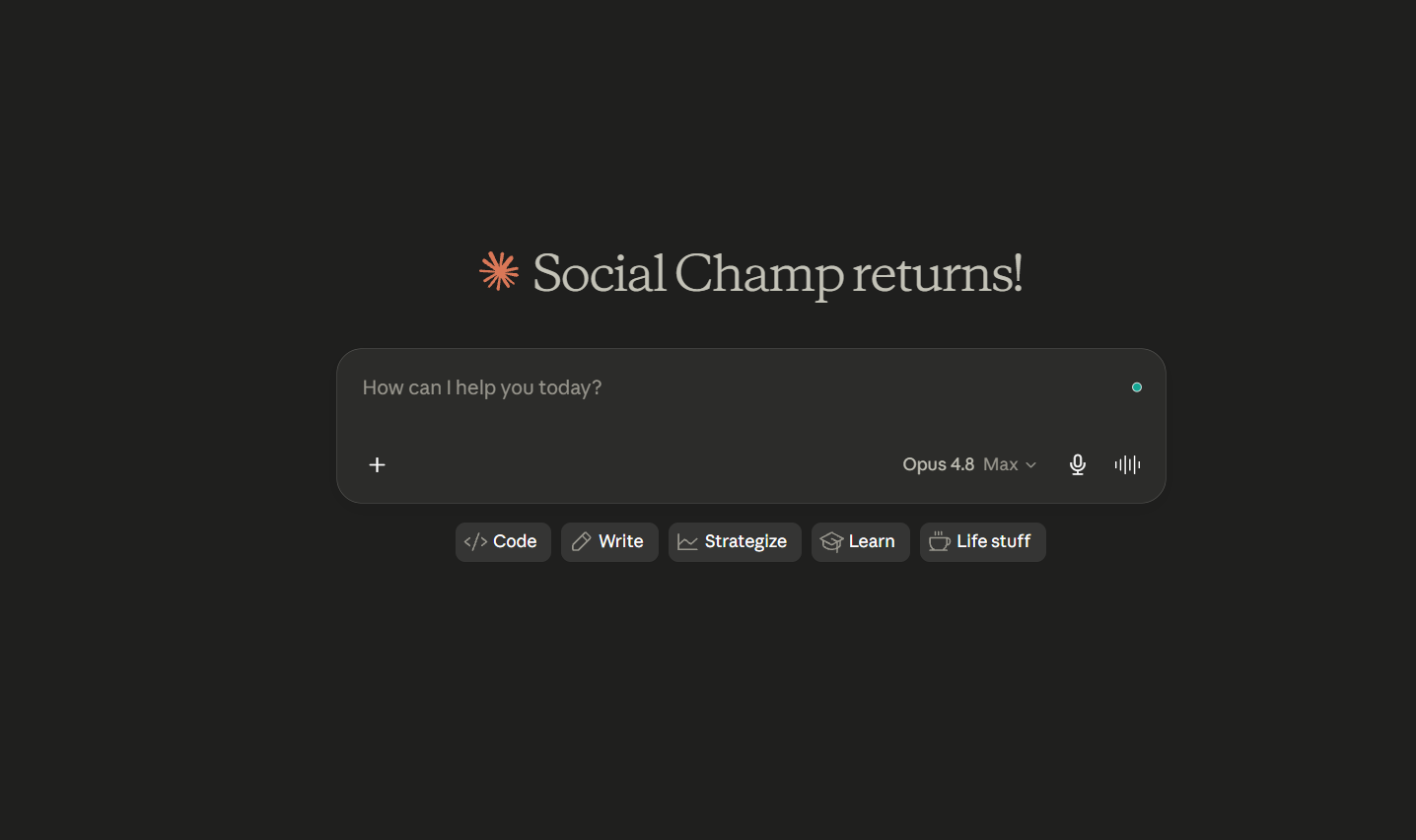
- Enter a prompt in your AI tool to start interacting with Social Champ.
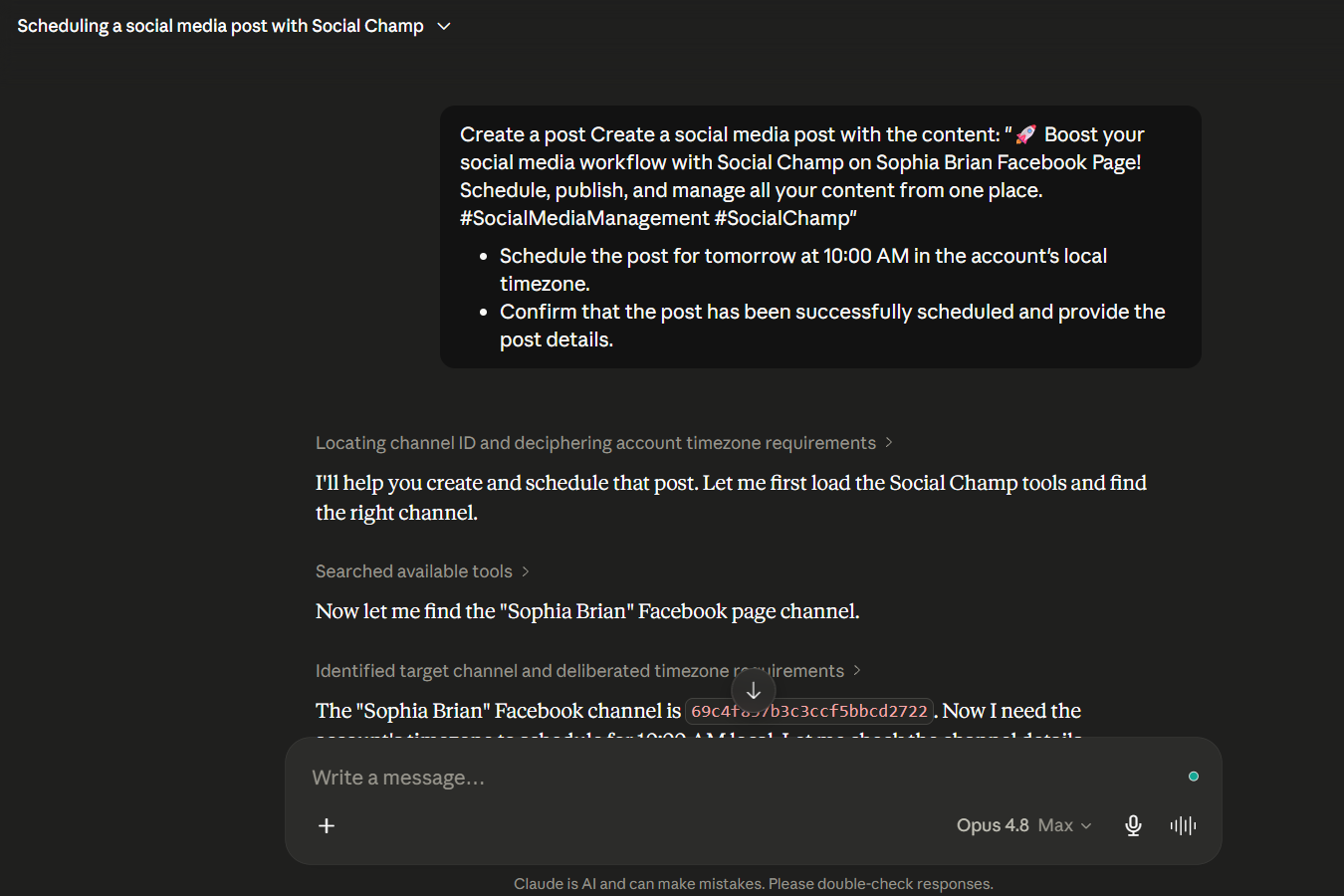
You can also try prompts such as:
- List all my connected Social Champ channels
- Add a post to my queue that says ‘Excited to share our latest update!’ for next Monday
- Show me all my draft posts in Social Champ so I can review what’s pending
You have successfully connected your AI tool to Social Champ using MCP. Once connected, your AI assistant can help manage Social Champ tasks such as viewing channels, reviewing scheduled content, checking drafts, and creating posts, all while keeping you in control of your account permissions.
Get the Support You Need
Having trouble? Got a question? We’re here to support you every step of the way. Simply email us at [email protected], and we’ll get back to you.
Social Champ’s integration of Zapier is a recent addition to the already existing chest of feature integrations on board. Zapier Read more
Hey Champs! Follow this step-by-step guide to learn how you can use Social Champ’s Link Shortening feature. When you first Read more
Note: This guide is based on an earlier version of Social Champ. Some steps or features may have changed. Please Read more
Link shortening is a crucial tool for marketers, offering a more concise way to share URLs across social media. Social Read more