
Hey Champs! Now you can ask Switch about performance, your calendar and captions, right inside Slack
Social Champ’s Slack integration lets your team @mention Switch in an approved private Slack channel and get answers in the same thread. Switch can answer questions about performance, your content calendar and approvals, and can write caption previews. Every answer uses the user’s own Social Champ access, so people only see what they are already allowed to see.
Slack is read-only. Switch never schedules, publishes, approves, deletes or changes settings from Slack. Captions are saved as drafts, and anything that goes live is scheduled or approved in Social Champ.
Note: The Slack integration is currently in pilot, so the Slack card only appears for accounts included in the pilot.
The guide covers the following key parameters:
- Connecting Slack to your Social Champ account
- Choosing the channels Switch may answer in
- Linking your own Social Champ account in Slack
- Asking Switch a question and opening the full answer
- Following up in a thread
- Writing captions and saving them as drafts
- What Switch will not do from Slack
- What happens when channel members change
- Finding Slack conversations in Switch history
1. Connecting Slack to Social Champ
Only the account owner or an admin of the workspace can connect Slack.
- Log in to your Social Champ account.
- Open Settings from the left panel and select Integrations.
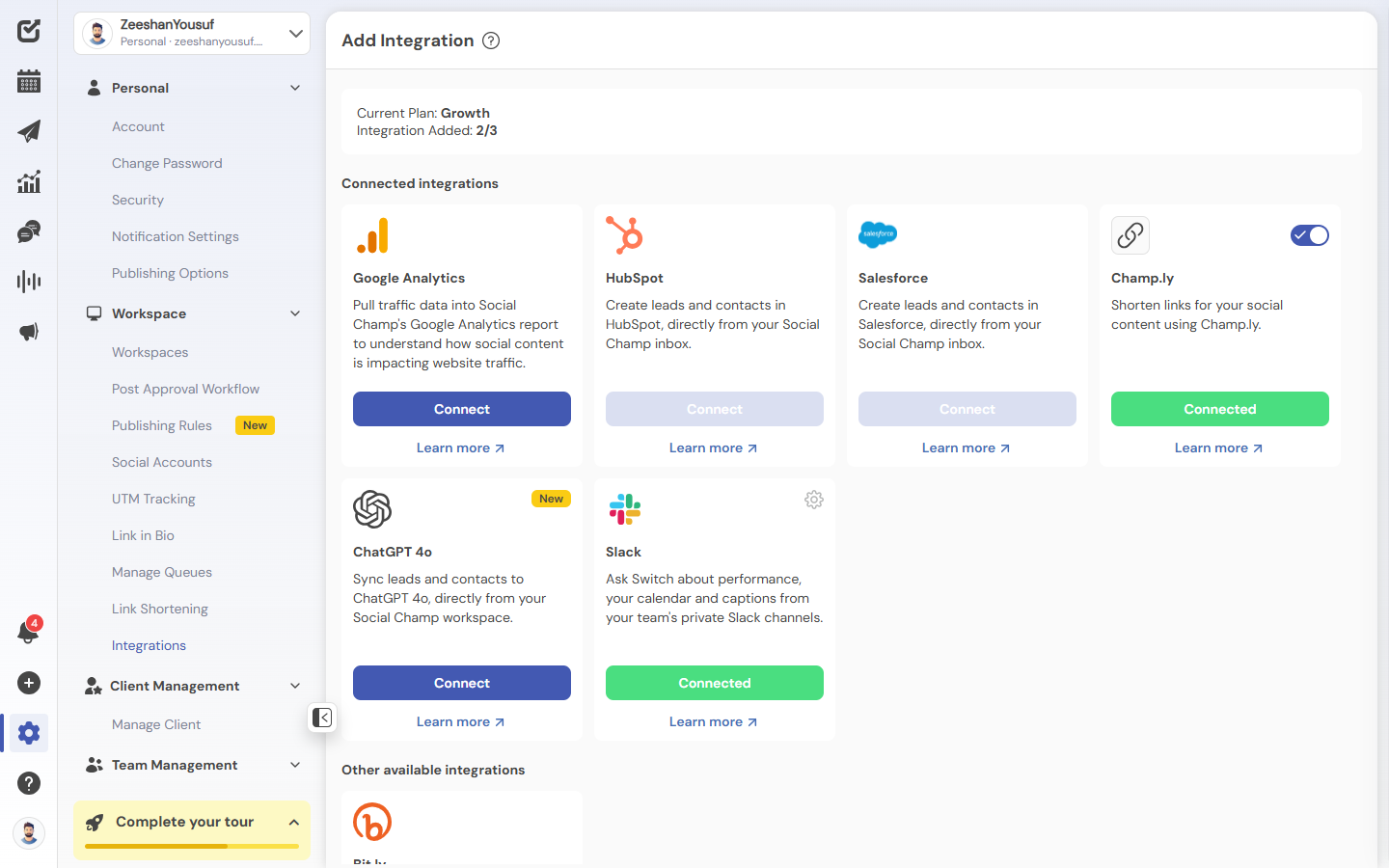
- Find the Slack card, which sits next to HubSpot, Salesforce and ChatGPT, and click Connect.
The Slack card on Settings → Integrations
- Slack asks you to approve the Social Champ app for your Slack workspace. Review the permissions and allow access.
- You return to Social Champ and the Slack card now reads Connected.
Note: If Slack removes the app from your workspace, the card shows Reconnect instead. Click it to approve the app again.
2. Choosing the channels Switch may answer in
Switch answers only in private Slack channels that an owner or workspace admin has approved. It does not answer in direct messages, public channels or shared (Slack Connect) channels.
- In Slack, invite the Switch app to the private channel you want to use.
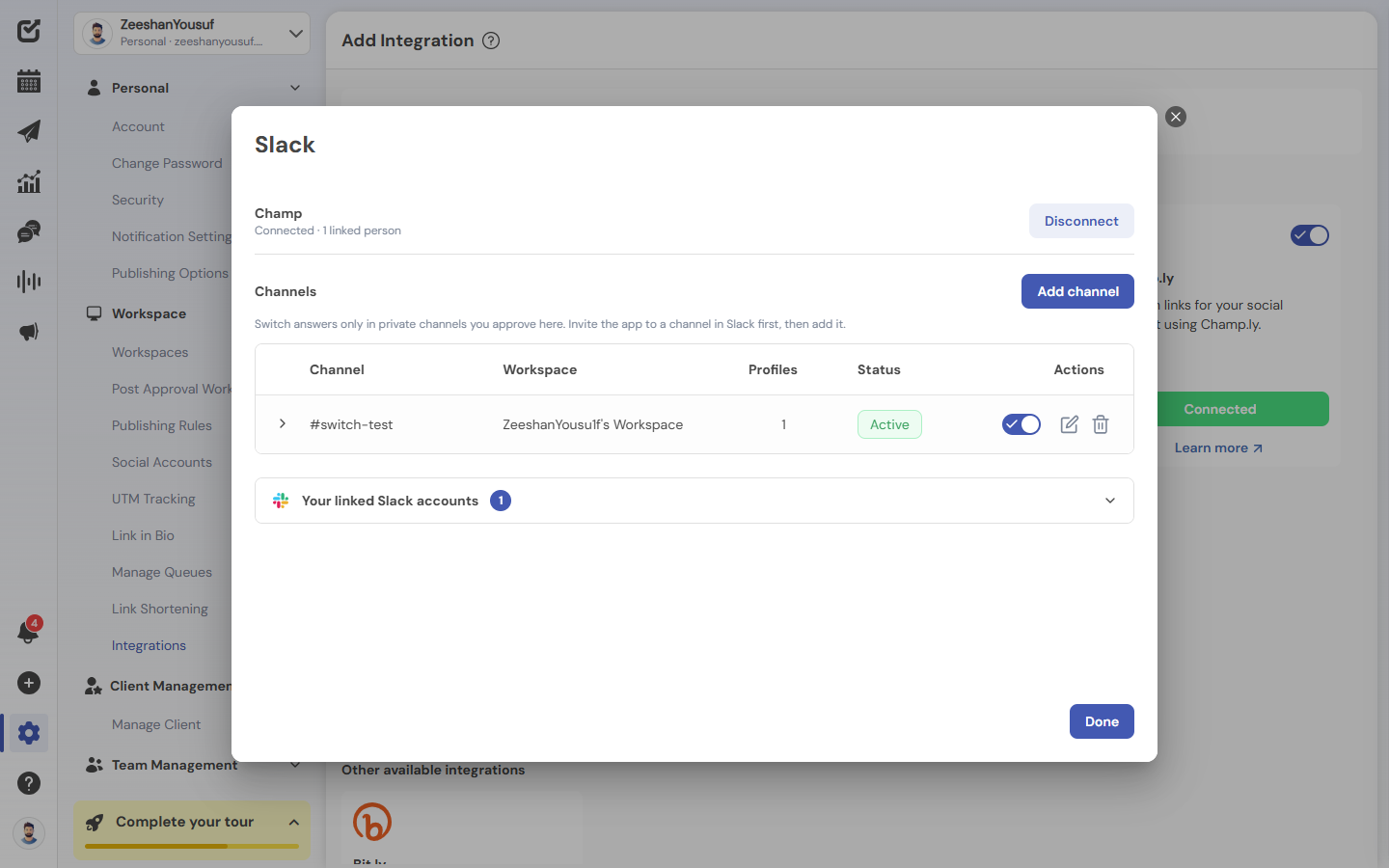
- In Social Champ, go to Settings → Integrations and click Connected on the Slack card to open the manage dialog. It lists your Slack workspace, the approved channels and your own linked Slack accounts.
- Click Add channel and choose the private channel.
- Pick the Social Champ workspace this channel can see. Each channel is tied to one workspace.
- Optionally, choose a subset of that workspace’s social profiles. If you leave this untouched, all profiles are available.
- Tick the confirmation that the channel’s members may see this data, then save.
- The channel appears in the list with the status Active. In this example, #switch-test is mapped to My Workspace with 2 profiles.
An approved channel with the status Active
Use the links at the end of each row to manage a channel:
- Disable pauses Switch in that channel without removing it.
- Edit changes the workspace or the selected profiles.
- Remove stops Switch answering in that channel.
3. Linking your own Social Champ account
Each person links their own Social Champ account to their Slack user once. This is what makes sure Switch answers with that person’s permissions and never the installer’s.
- In the approved channel, mention @Switch and ask a question. If you have not linked your account yet, Switch replies with a Link your Social Champ account Only you can see this message (Slack shows “Only visible to you”).
The link button, visible only to the person who asked
- Click the button. Social Champ opens and shows your Slack user and the Social Champ account you are signed in to. Confirm it is you and click Link account.
Confirming the link in Social Champ
- Social Champ confirms that your account is linked. Go back to Slack and ask your question again.
Your account is now linked
Note: Your first question is not replayed after linking, and it does not use any of your chats. Just ask again.
4. Asking Switch a question
Once your account is linked, mention @Switch in the channel with any question about your performance, calendar or approvals. For example:
- “How did my Instagram do last month?”
- “What is scheduled for next week, and is anything waiting for approval?”
- “How many posts are waiting for approval?”
- Type @Switch followed by your question in the channel. Replying inside a thread keeps the answer together with the question.
- Switch first posts Request received, then posts the answer in the same thread with a View details in Social Champ
Switch’s answer arrives in the same Slack thread
Switch answers as you, on the workspace and profiles chosen for that channel. Calendar and approval questions are read-only.
5. Viewing the full answer in Social Champ
- Click View details in Social Champ under Switch’s answer in Slack.
- The saved answer opens in Social Champ under From Slack, showing your question and Switch’s answer. Click Continue in Switch to carry on the same conversation in the app.
The saved answer in Social Champ
Note: Only the person who asked can open the saved answer.
6. Following up in a thread
Mention @Switch again inside the same thread and it continues your own conversation. Your earlier questions and answers in that thread are passed along as history, so you can ask things like “And what about the week after that?”.
A follow-up question in the same thread
Note: If another person joins the thread and mentions @Switch, they start their own conversation. They do not see your history.
7. Writing captions and saving them as drafts
Ask Switch for captions and it writes previews in the thread. Previews are not saved or scheduled until you save them as drafts in Social Champ.
- Mention @Switch and ask for captions, for example “write three short captions for a product launch”. Switch posts the previews with a Review drafts in Social Champ
Caption previews in the Slack thread
- Click Review drafts in Social Champ. On the Review drafts from Slack page, tick the previews you want to keep. You can edit the text of any preview.
Selecting and editing previews
- Under Save to these profiles, choose the destination profiles.
- Click Save drafts. Saved previews change to Saved draft and you can find them in Drafts.
Saved previews are marked Saved draft
- You can come back later and save more previews from the same page.
Selecting the remaining previews
Note: Saved previews stay marked as Saved draft even after you reload the page, so saving twice never creates duplicate drafts. Nothing is scheduled or published from Slack.
8. What Switch will not do from Slack
If you ask Switch to schedule, publish, approve, delete or change settings, it explains that this has to be done in Social Champ and, where it can, offers to draft the content instead.
A scheduling request is declined with a pointer to Social Champ
9. When channel members change
To protect your data, Switch checks who is in the channel. If someone joins or leaves, the channel pauses until an admin approves it again.
- When a member is added to or removed from the channel, its status in the manage dialog changes to Paused, members changed.
A paused channel in the manage dialog
- If someone mentions @Switch while the channel is paused, Switch asks the channel to contact a workspace admin instead of answering.
Switch asks for an admin to re-approve the channel
- An admin clicks Re-approve in the manage dialog. The channel returns to Active.
The channel is Active again after re-approval
- Switch still checks the audience before every answer. If a member of the channel has not linked their own Social Champ account, Switch declines to answer and shows no data until the channel’s members are all linked.
A generic refusal when the audience check fails
10. Slack conversations in Switch history
Every Slack thread is saved as a Switch conversation with a Slack badge, so you can pick it up later in the app. Follow-up questions typed in the app stay in the app.
Slack conversations listed in Switch history
Quick reference
| Question | Answer |
| Who can connect Slack, add or re-approve channels? | The account owner, or the admin of that workspace. |
| Who can ask Switch in Slack? | Slack users who have linked their own Social Champ account. |
| Whose permissions does an answer use? | The person who asked, never the person who installed the integration. |
| What can one channel see? | One workspace, and only the profiles chosen for that channel. |
| Where does Switch answer? | Approved private channels only. Not in direct messages, public channels or shared (Slack Connect) channels. |
| When does Switch refuse without showing data? | When the channel is paused or shared, or when the channel includes a guest or a member who has not linked their account. |
| What happens when a member joins or leaves? | The channel pauses until an admin re-approves it. |
| Can Switch change anything from Slack? | No. It cannot publish, schedule, delete, save, approve or change settings. |
| What about captions? | Previews only, until you save them on the drafts page. Saving twice never creates duplicates. |
| What does an answer cost? | One Switch chat per answered question, from the same allowance as the app. Refusals and link prompts use none. |
| What if Slack posts an event twice? | It is ignored, so you are never answered or charged twice. |
| What happens if I disconnect Slack? | Social Champ revokes its Slack access and removes the approved channels and links. Messages already in Slack stay. |
Great work! You now know how to use Switch in Slack with Social Champ.
Social Champ’s integration of Zapier is a recent addition to the already existing chest of feature integrations on board. Zapier Read more
Hey Champs! Follow this step-by-step guide to learn how you can use Social Champ’s Link Shortening feature. When you first Read more
Note: This guide is based on an earlier version of Social Champ. Some steps or features may have changed. Please Read more
Link shortening is a crucial tool for marketers, offering a more concise way to share URLs across social media. Social Read more