
Hey Champs! You can distribute your added social media accounts into different Workspaces. Creating Workspaces will help you streamline and manage your tasks more easily and efficiently.
Here in this guide, you can learn how you can create a Workspace in your Social Champ account.
Let’s get started.
- When you first log in to your Social Champ account, you’ll land on the Content Dashboard by default. To create a new workspace, you can access the Workspace settings in either of the following ways:
From the Workspace menu: Click the down arrow next to your current workspace name and select the Create option.
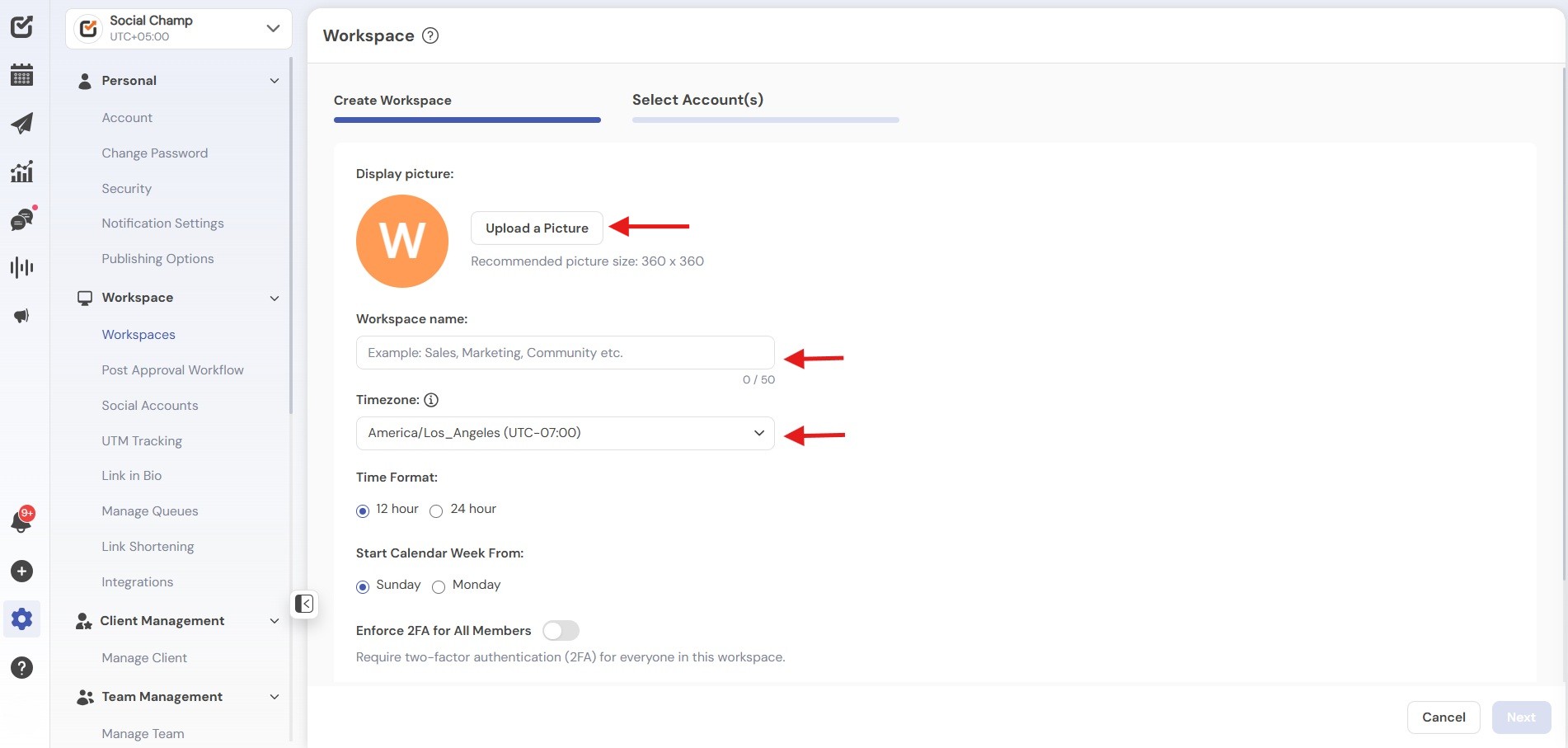
From Settings: From the left panel, go to Settings and under Workspace select Workspaces. - You can give a name to your Workspace and select the timezone from the drop-down as per your preference or target audience. Upload a picture to give it a personalized look. (Uploading a picture is optional).
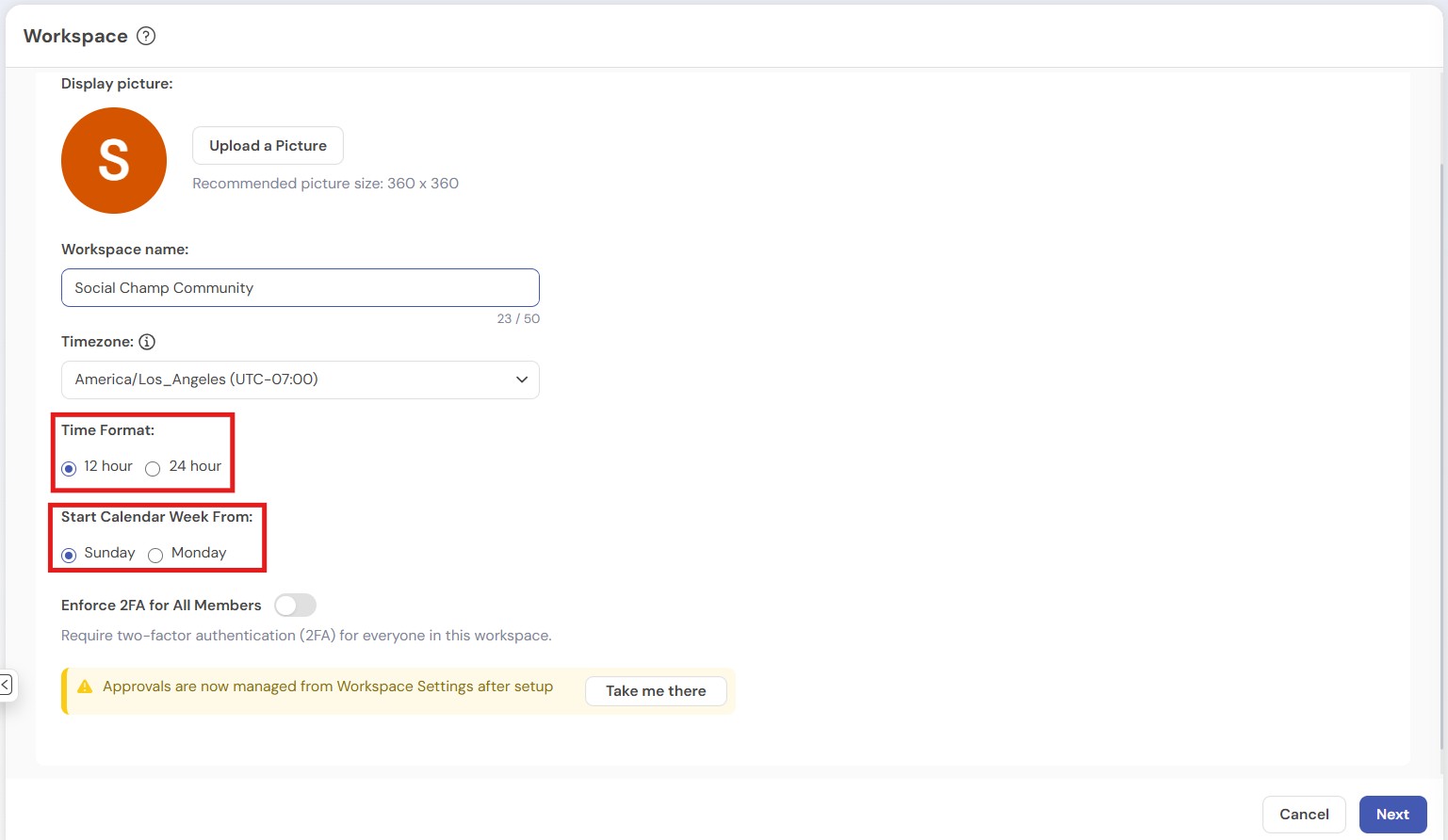
- Now select the Time Format and the Calendar Week start day as per your preference.
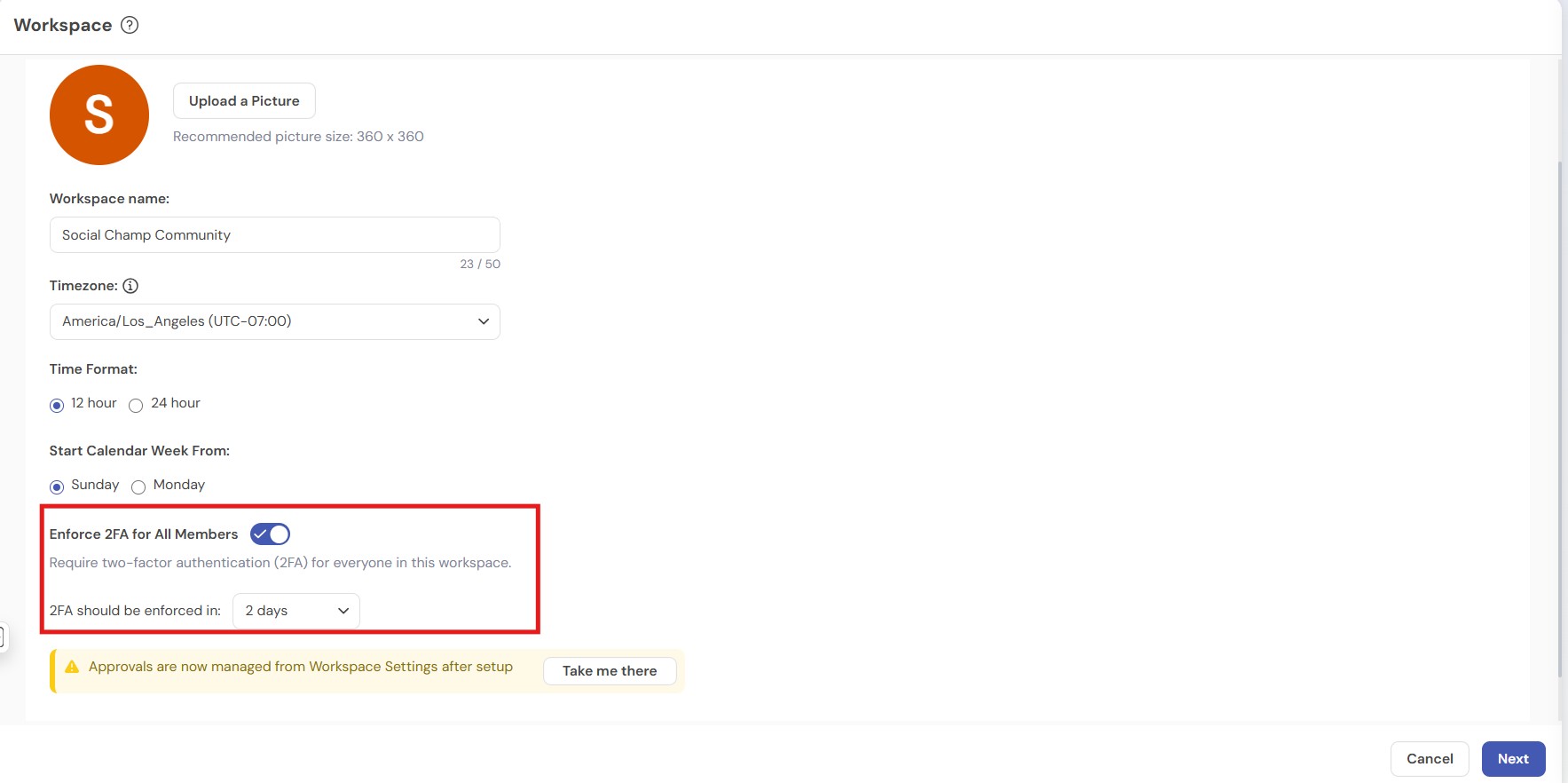
- Enforce Two-Factor Authentication (2FA) for All Workspace Members: Workspace admins can require all members to enable Two-Factor Authentication (2FA) to strengthen workspace security. When Enforce 2FA for All Members is enabled, every workspace member including Admins and the Workspace Owner must set up 2FA by the enforcement deadline. Users who haven’t enabled 2FA will have limited access until setup is completed.
- Once click next Select the social media accounts you would like to add to this workspace. Click the box to open a drop-down menu where you’ll see a list of all your social media accounts connected to Social Champ, along with the workspace they’re currently added to.
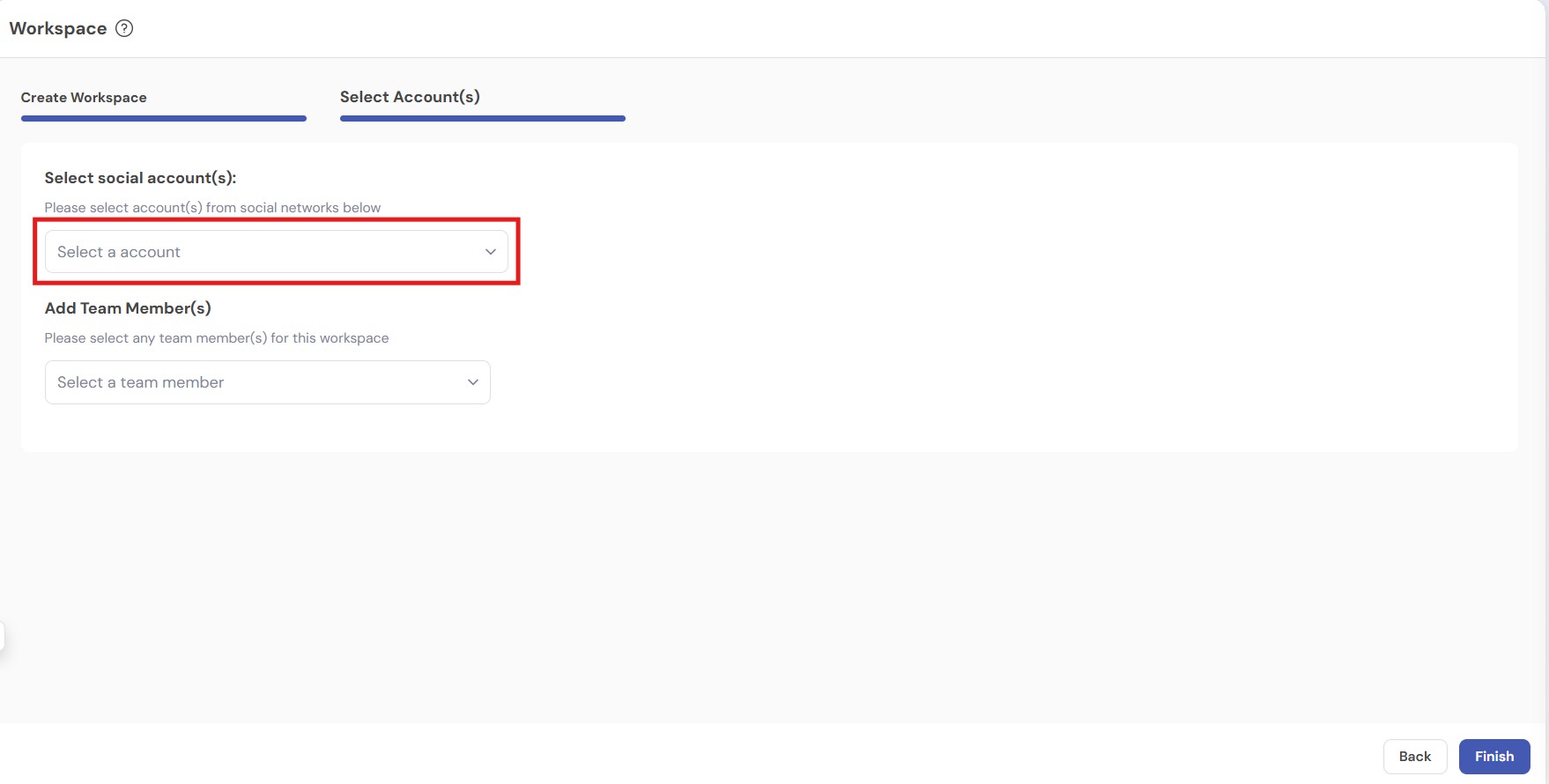
- If you would like to add/move a Social Account from a different workspace to the new workspace simply tick the checkbox next to the Social Account.
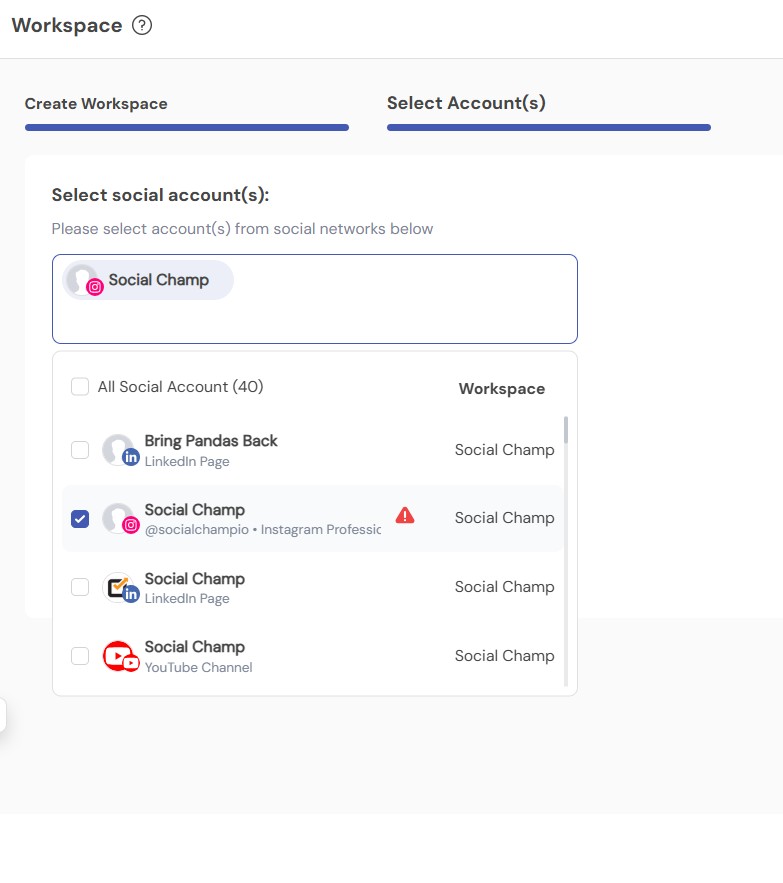
Please note: A Social Media account can only be present in ONE workspace at a time. If you’re moving a Social Media account from one workspace to another a Warning icon will show up. Click the icon to view some important details. They are as follows:
* All Saved Drafts posts under this social account(s).
* All Auto-RSS feeds set up by this social account(s).
* The social account(s) will be removed from all Campaigns. - Within the same window, you’ll have the option to select the team members you want to add to the workspace by clicking the drop-down menu.
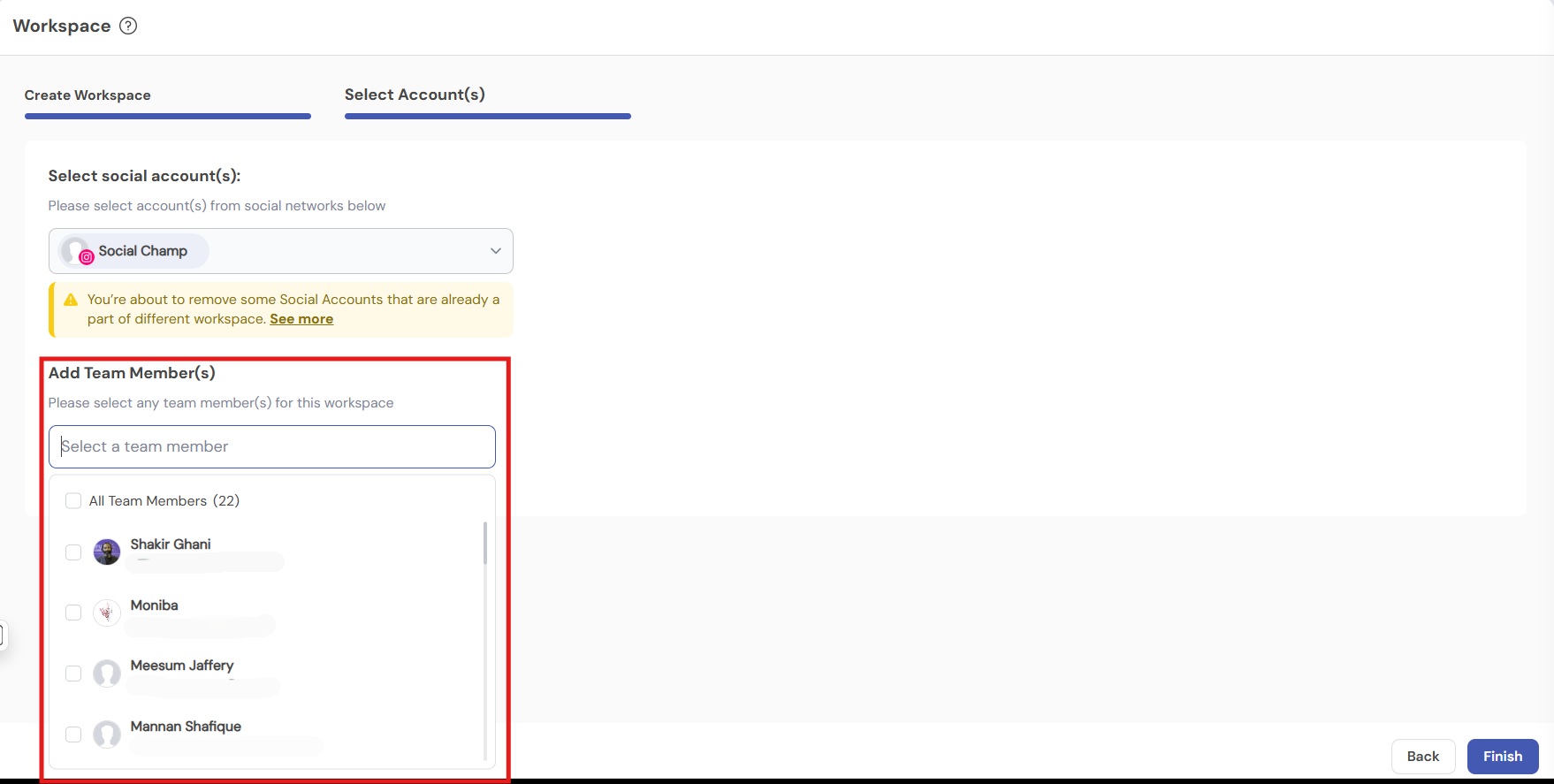
- You can further edit the team by assigning them preferred roles.
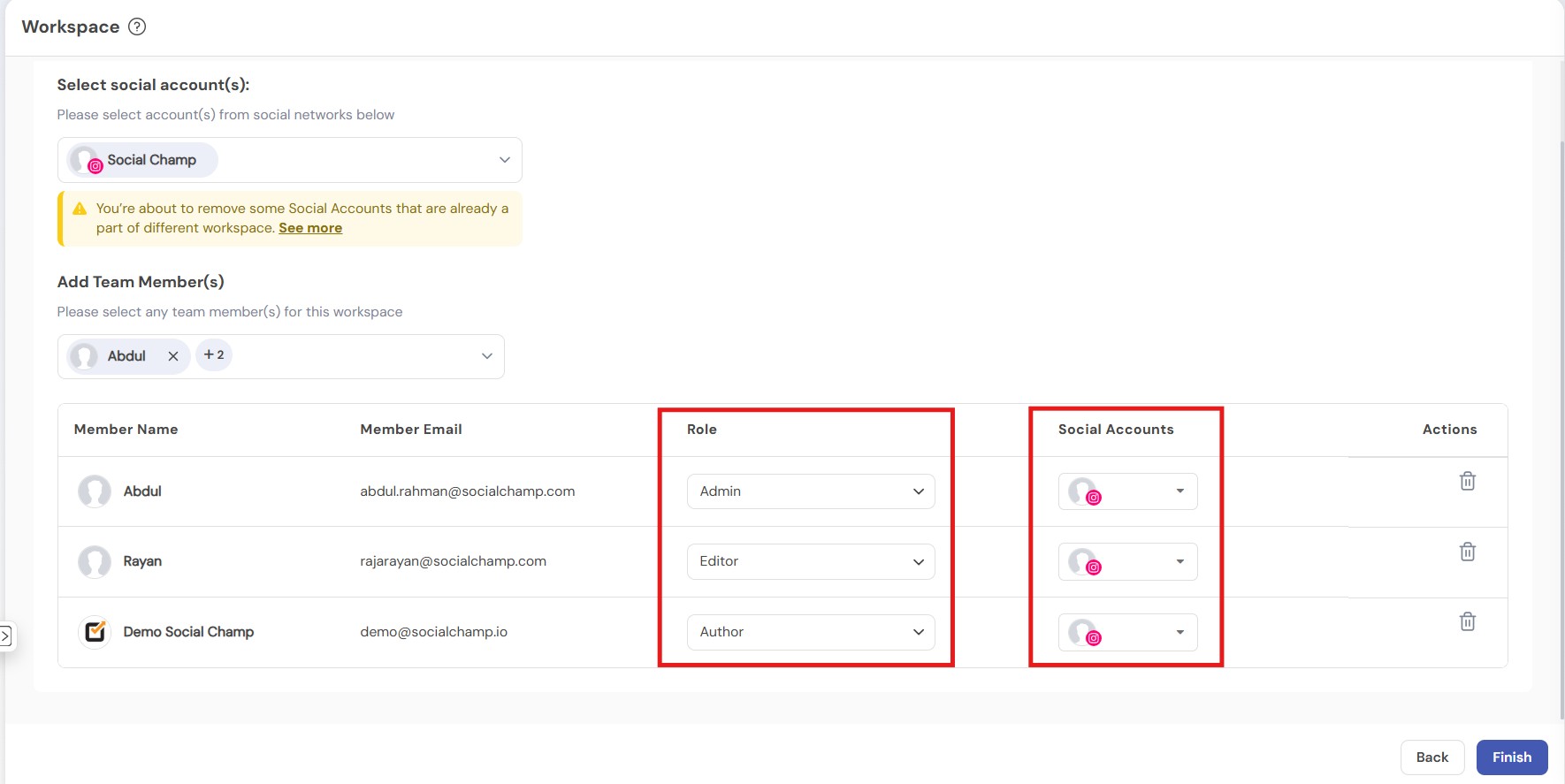
Please note:
* The Admin team member will be able to: Approve posts, Manage Team, Manage Workspaces and Accounts, Recycle, Auto-RSS, Post Calendar
* The Editor team Members will be able to: Manage Accounts, Recycle, Auto-RSS, Post Calendar
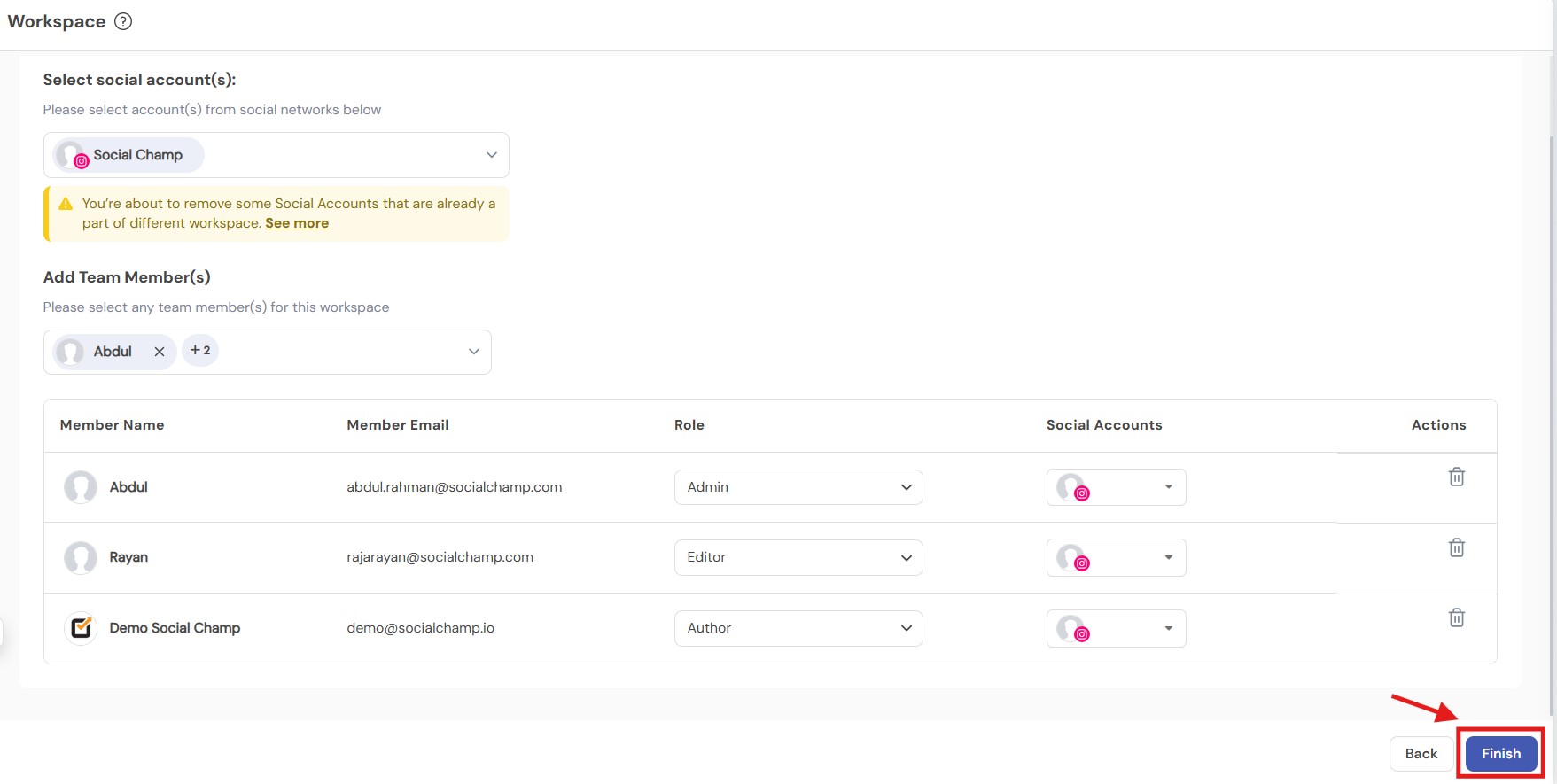
* The Author role Team Member Only manage posts within Calendar and cannot approve posts. You can select the Social Accounts the Author can interact with by ticking the checkbox, and also opt in to Post Approvals for those selected Social Media accounts by switching the toggle on. - Once done, click the Finish button to save your new Workspace.
Great work! Now you know how to create workspaces. You can find more guides related to the workspace here,
We also encourage you to check out the Video Tutorial on Creating Workspaces here.
Adding team members to your Social Champ account enhances collaboration and streamlines your social media management. Follow this step-by-step guide Read more
Hey Champ! If you need to update the time zone for your Workspace, Social Champ has you covered. Follow these Read more
Social Champ allows you to assign roles to your team members, allowing you to collaborate with your colleagues in a Read more
Social Champ allows you to assign roles to your team members, allowing you to collaborate with your colleagues in a Read more