
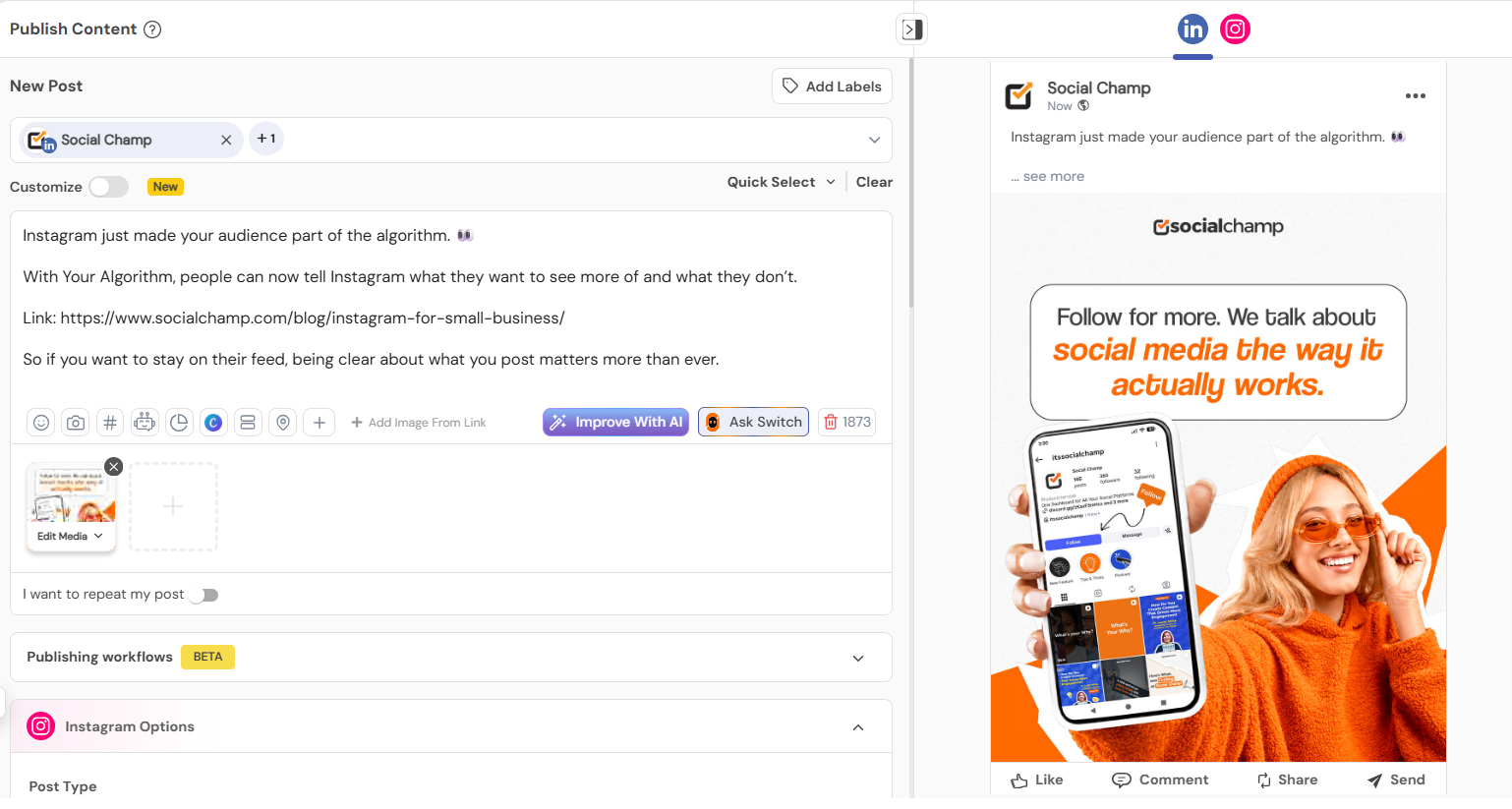
When you create a post from the Publish Content screen, Social Champ shows you a live preview on the right side of your screen. This preview updates in real time as you write your caption, add media, and select accounts, giving you a close approximation of what your audience will see once the post goes live.
Where to Find the Preview
- Go to Publish to open the content composer.
- On the left, you’ll build your post: select an account, write your caption, attach media, and configure any labels or repeat settings.
- On the right, the preview panel automatically renders your post using the account you’ve selected.
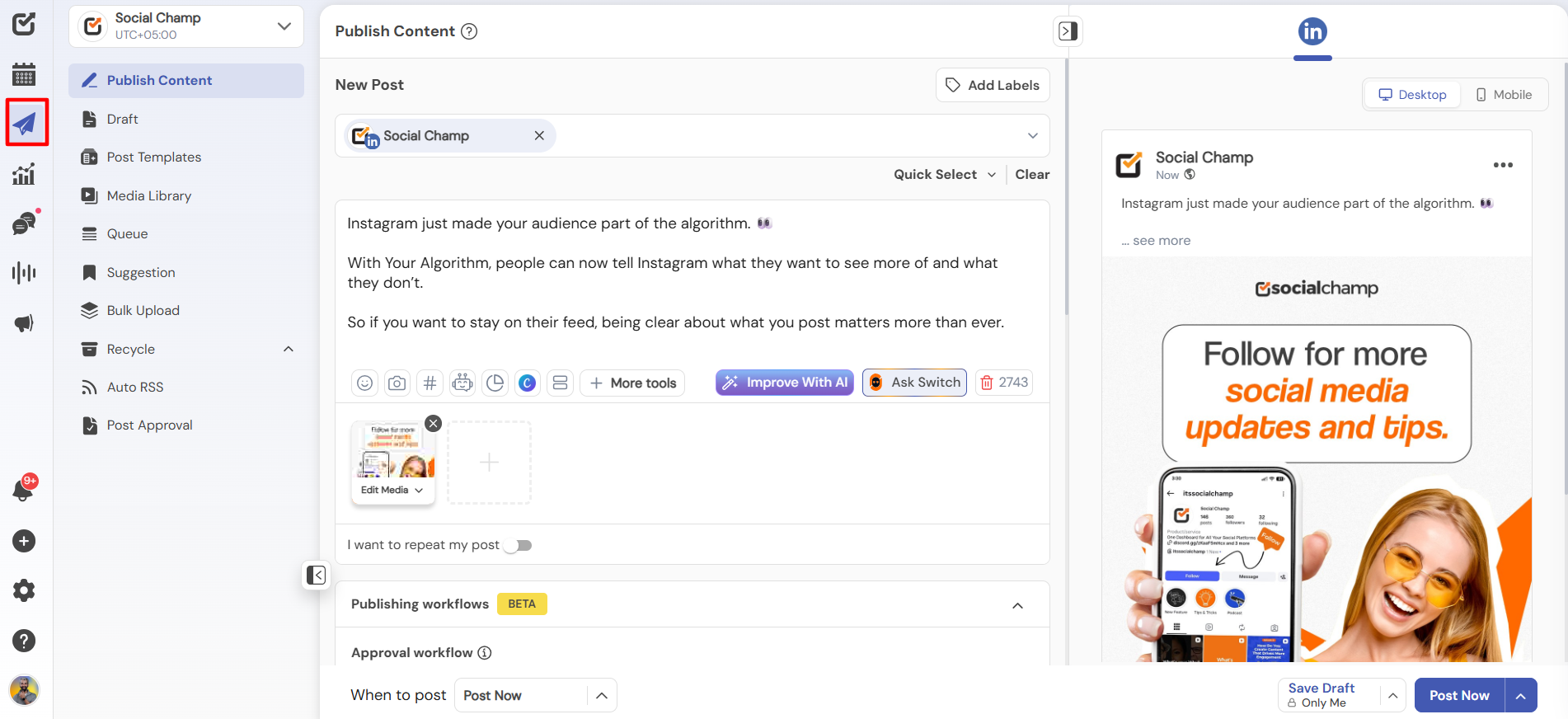
Switching Between Desktop and Mobile Views
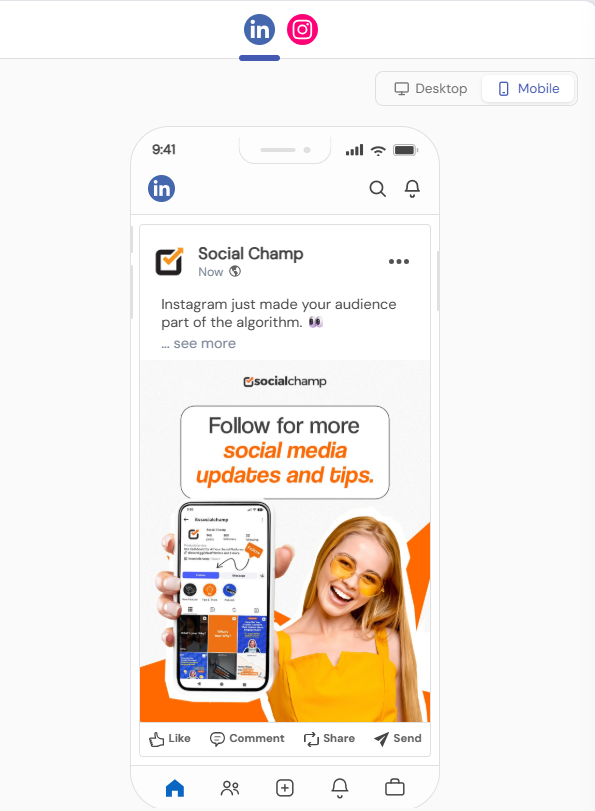
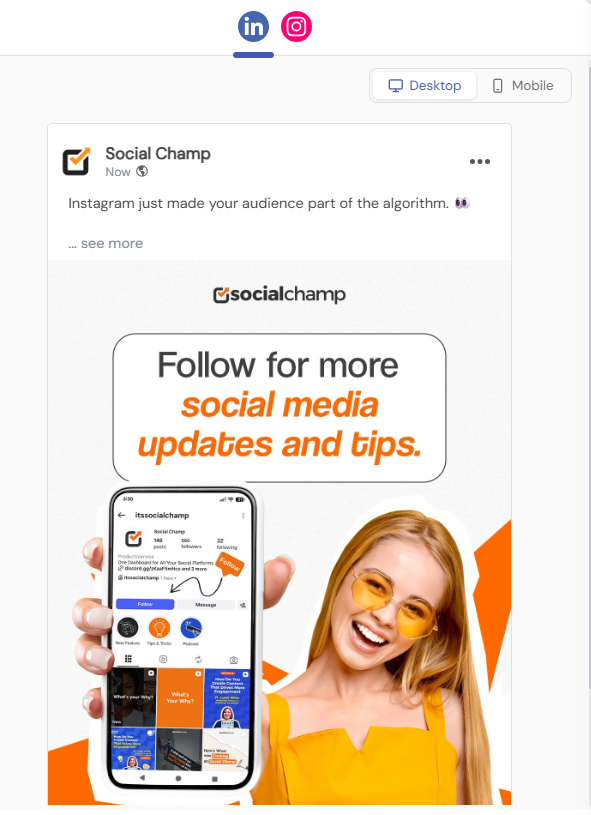
At the top of the preview panel, use the Desktop and Mobile toggle to see how your post will render on each device size. This is especially useful for checking:
- How much of your caption is visible before it gets truncated
- How your image or video crops on smaller screens
- Whether your media placement looks the same across devices
If you have multiple accounts selected for a post, you can switch between platform previews using the platform icon shown above the preview card to check how the same post will appear on each network.
Understanding Potential Differences in Previews
Even with an accurate preview, some final details are adjusted by the social platforms themselves once your post is live. Common areas where minor differences can occur:
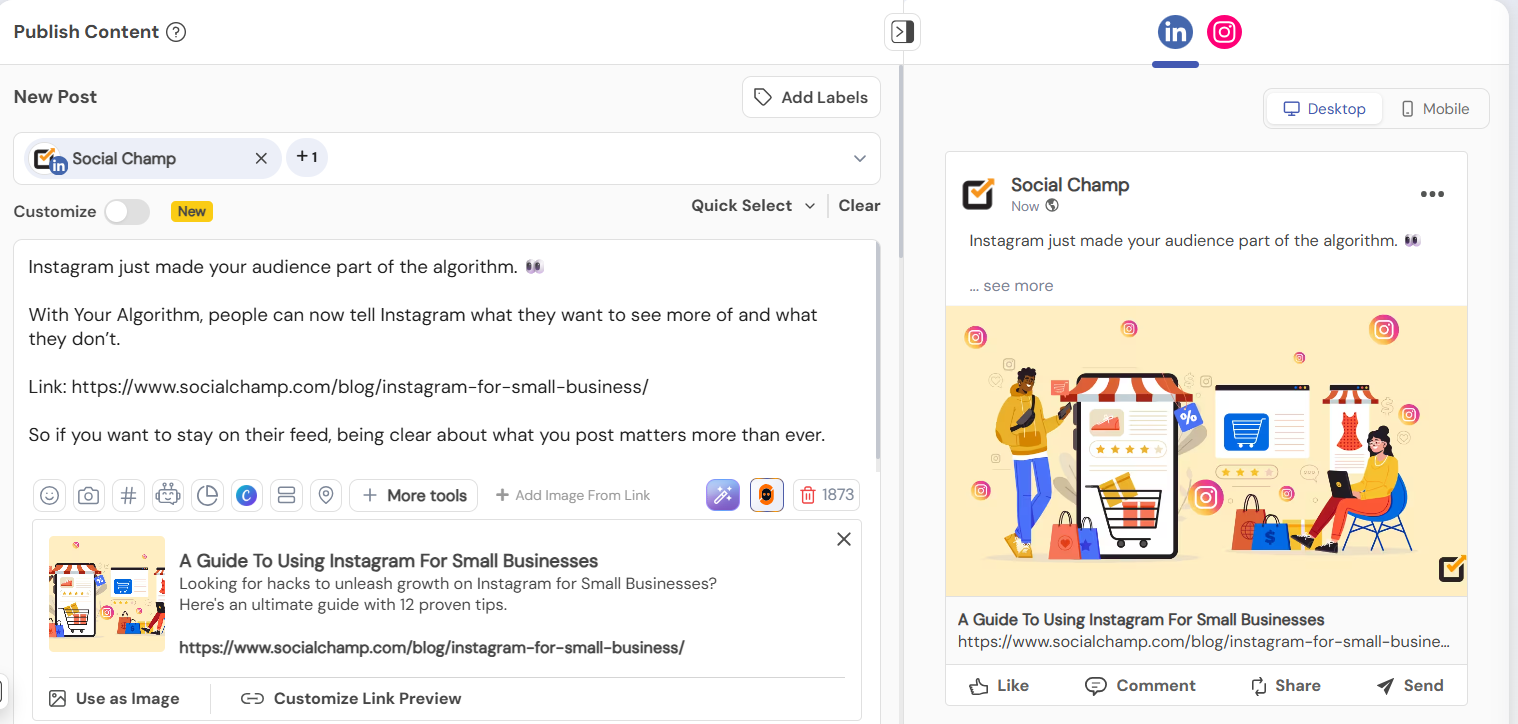
1. URL Previews/Thumbnails
- Link previews (title, description, thumbnail image) are generated automatically by each social platform.
- Every platform reads metadata from a URL differently, so the same link may look slightly different depending on where it’s published.
2. Attached Media (Images, GIFs, Videos)
- Platforms often resize, compress, or crop media to fit their own feed specifications and algorithms.
- This can cause small visual differences between what you see in the Social Champ preview and the final published post.
Best Practices for Optimal Posts
To minimize surprises between your preview and your live post, follow platform-specific media guidelines, recommended image/video dimensions, formats, and aspect ratios, before publishing.
Get the Support You Need
Having trouble? Got a question about your post previews or media? We’re here to support you every step of the way. Simply email us at [email protected], and we’ll get back to you.
Enhance your content strategy and engage your audience with YouTube video scheduling. Follow this step-by-step guide to schedule videos on Read more
Hey, Champs! Social Champ now introduces its much-awaited feature ‘Shareable Drafts’, which allows you to share your saved scheduled posts Read more
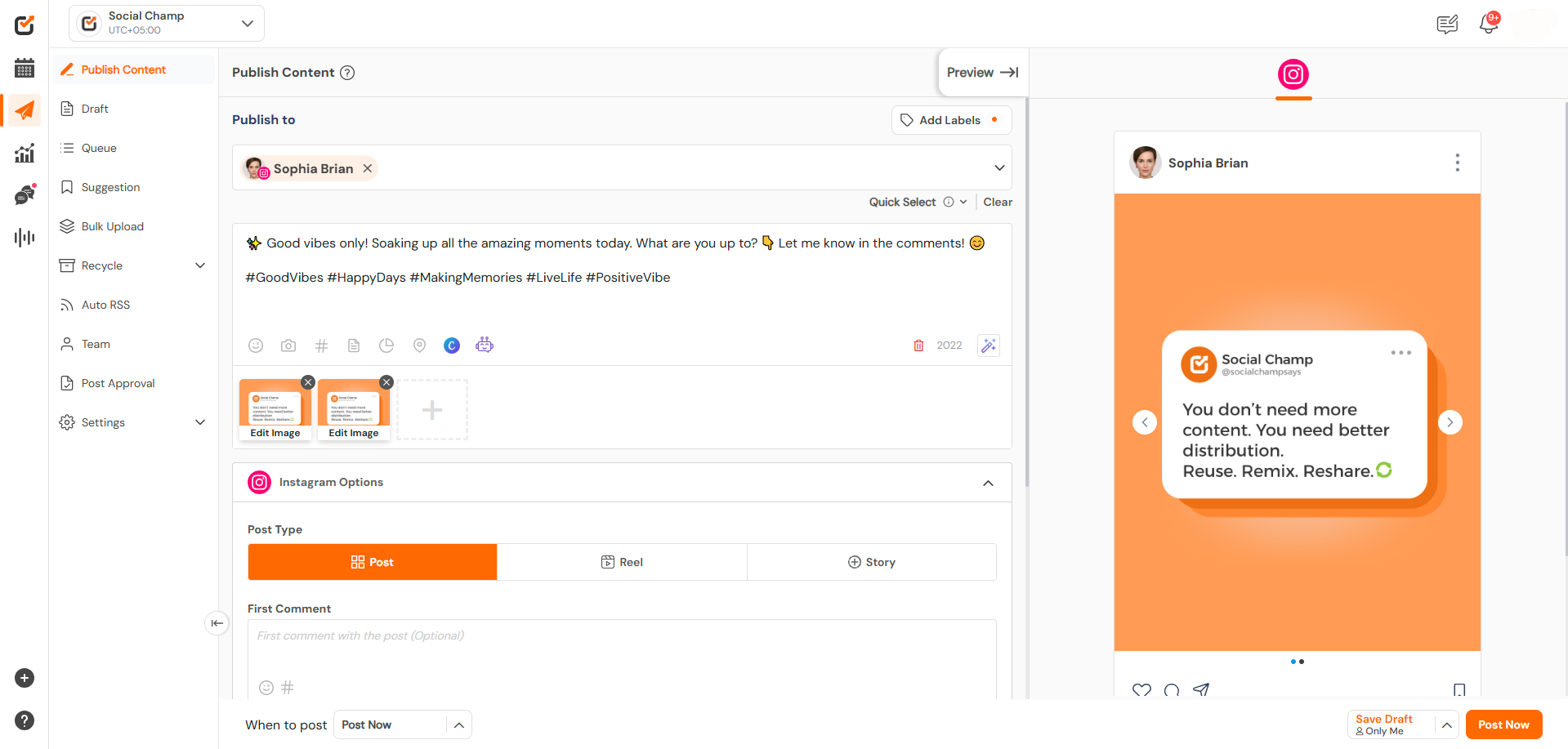
This guide will help you schedule carousel posts (multiple images) to your Instagram Business or Creator account using Social Champ. Read more
Social Champ offers a free plan and three paid plans. The number of posts you can schedule using each plan Read more