
Hello Champs! Welcome to our comprehensive guide on how to leverage Social Champ’s Engage feature to elevate your social media engagement. The Engage feature brings all your social media comments, messages, and reviews into one unified inbox, making it easy to manage conversations effectively.
Let’s get started. 😊
Access the Engage Inbox
- First, log in to your Social Champ account. You will be directed to our main dashboard.

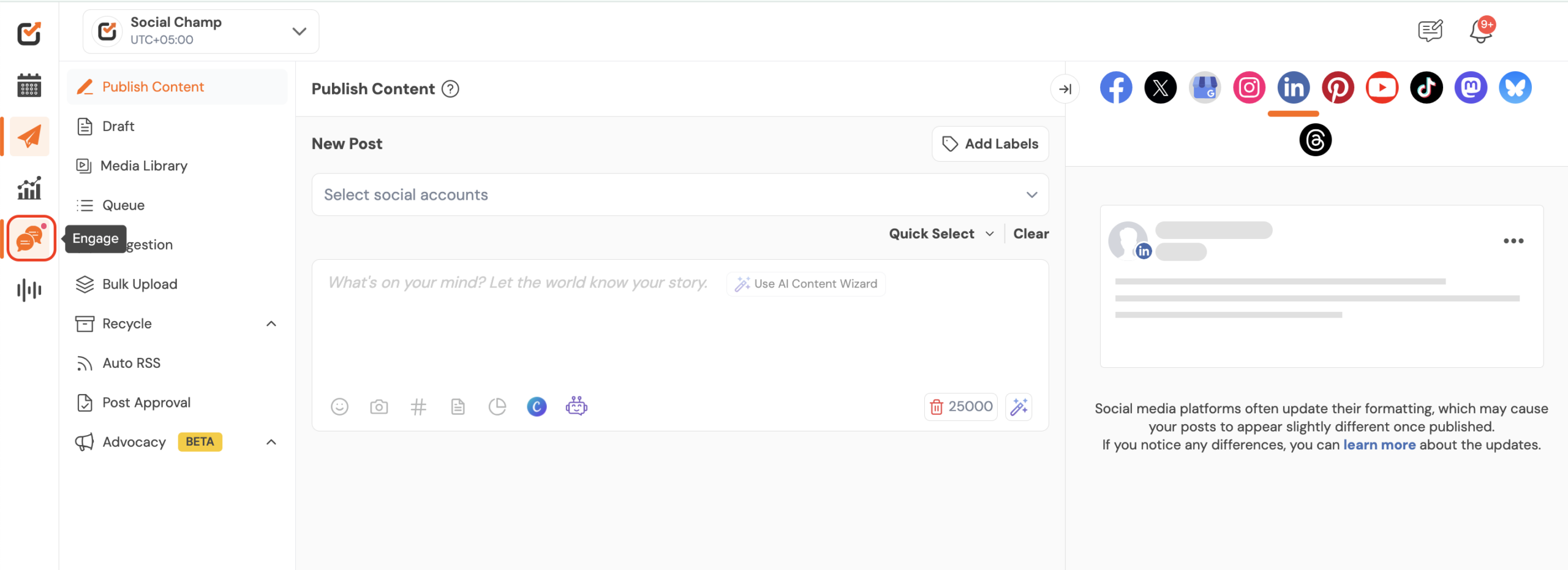
- Click the Engage icon on the left panel.
Manage Your Conversations
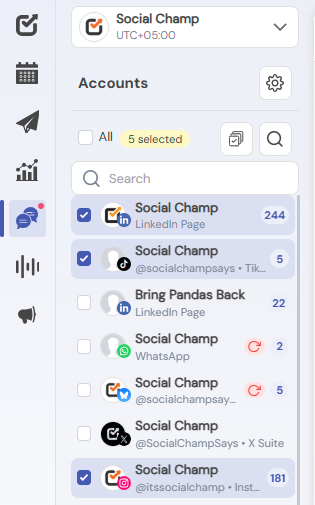
- Select or search any or multiple of your added social media accounts in the Engage window. You will see all the comments, messages, and reviews for those profile in one place.
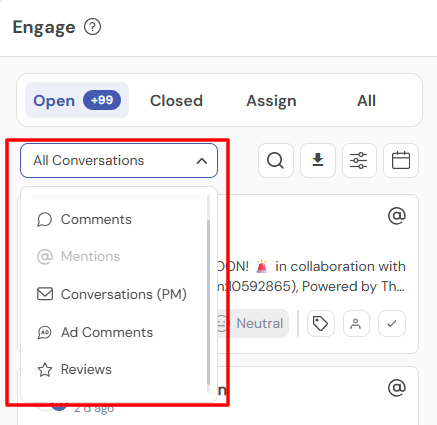
- You can filter the view to see only comments, conversations (direct messages), reviews, or ad comments. Selecting a filter like “Comments” will show only comments, allowing you to respond easily.
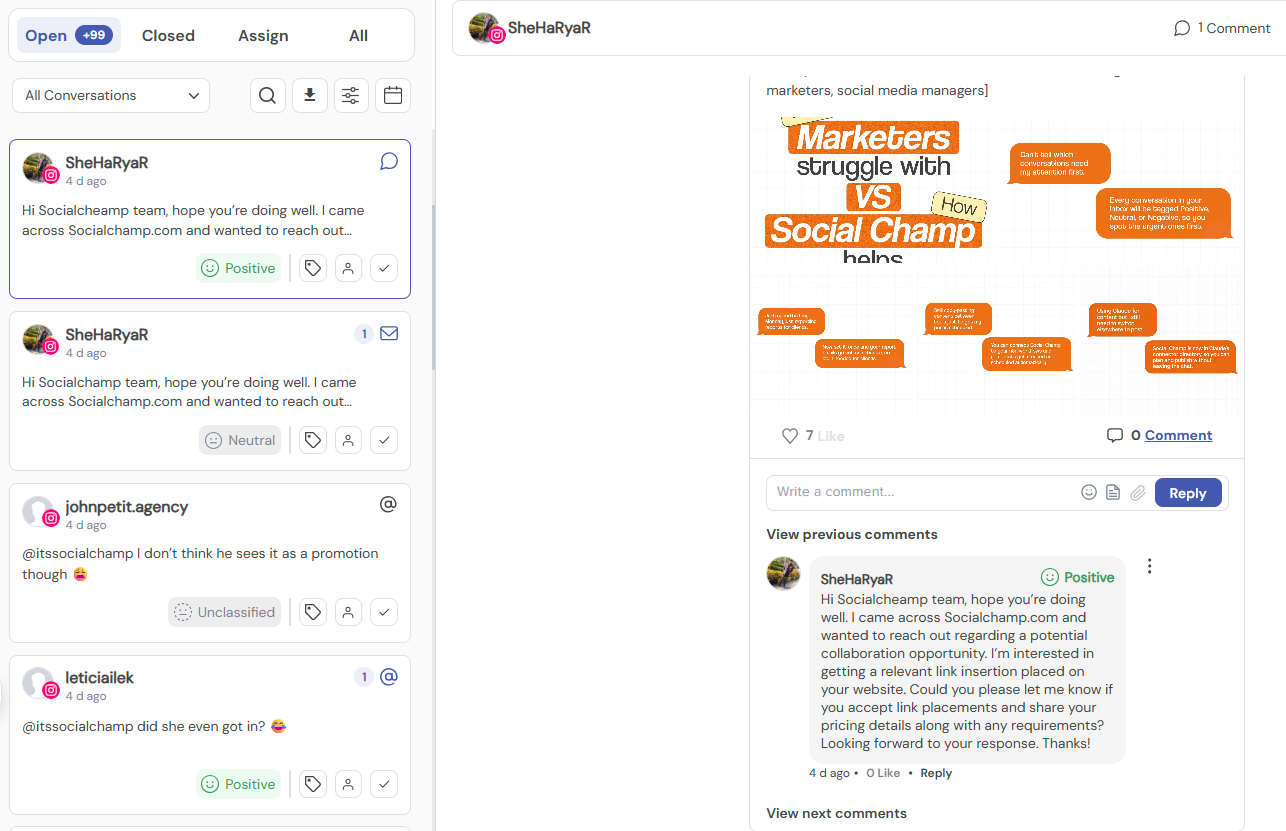
- Clicking on the message/comment will give you a preview on right hand side where you can write the reply, using the ,saved replies, emojis etc.
Utilize Extended Features
Clicking on the top right settings icon will give you the access to set up, different options to manage and organise your inbox.
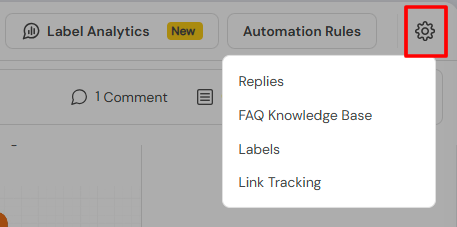
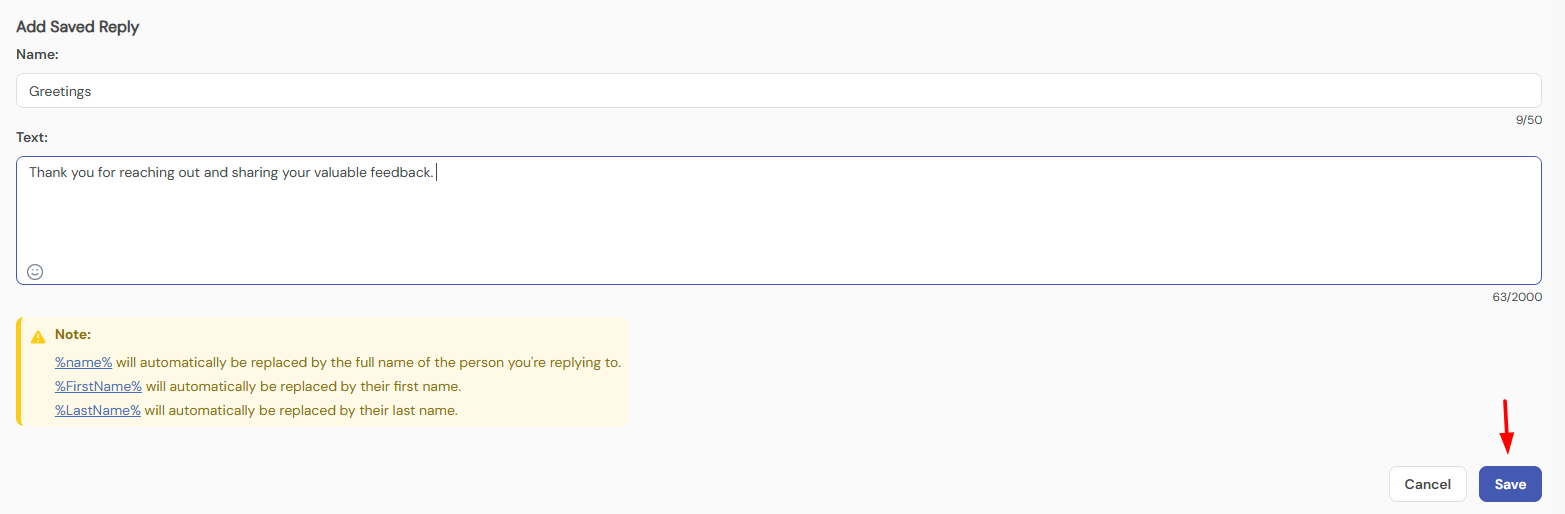
1. Saved Replies
On the Saved Replies page, click the ”Create New” button to create a new saved response. These pre-written messages help you respond faster and more efficiently.

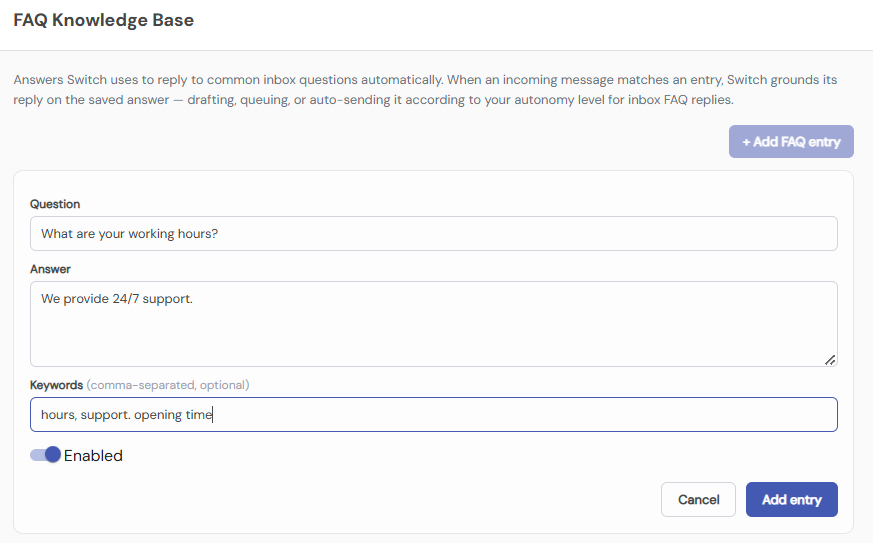
2. FAQ Knowledge Base
Answers Switch uses to reply to common inbox questions automatically. When an incoming message matches an entry, Switch grounds its reply on the saved answer — drafting, queuing, or auto-sending it according to your autonomy level for inbox FAQ replies.
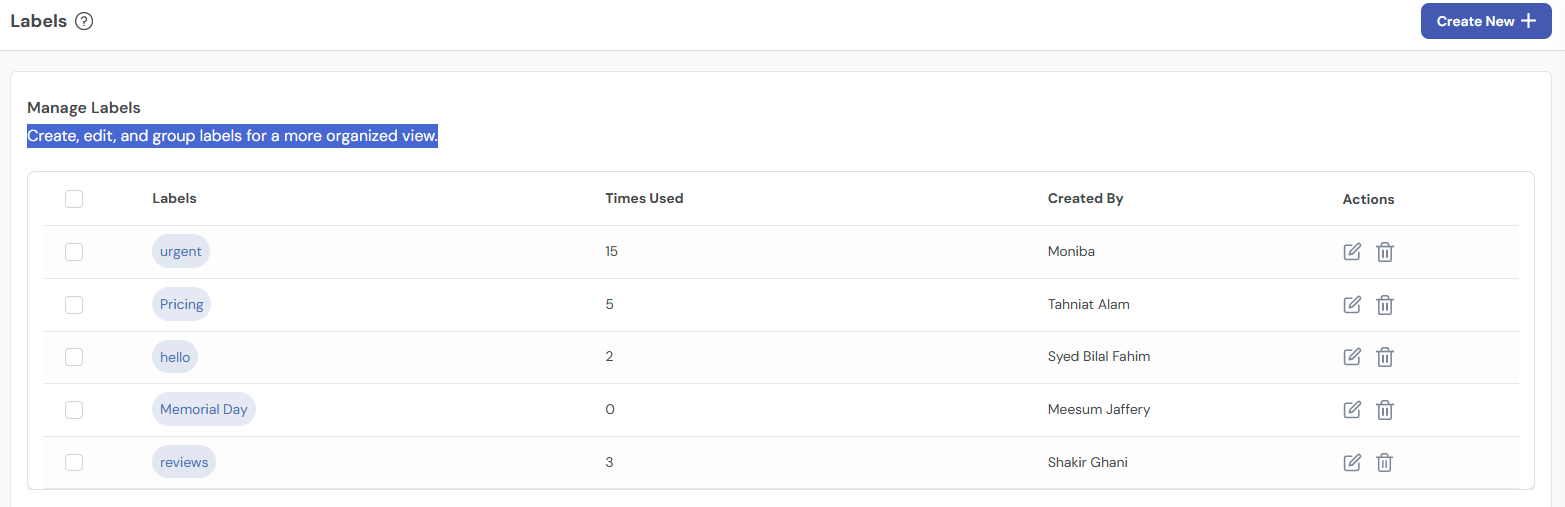
3. Labels
Create, edit, and group labels for a more organized view.
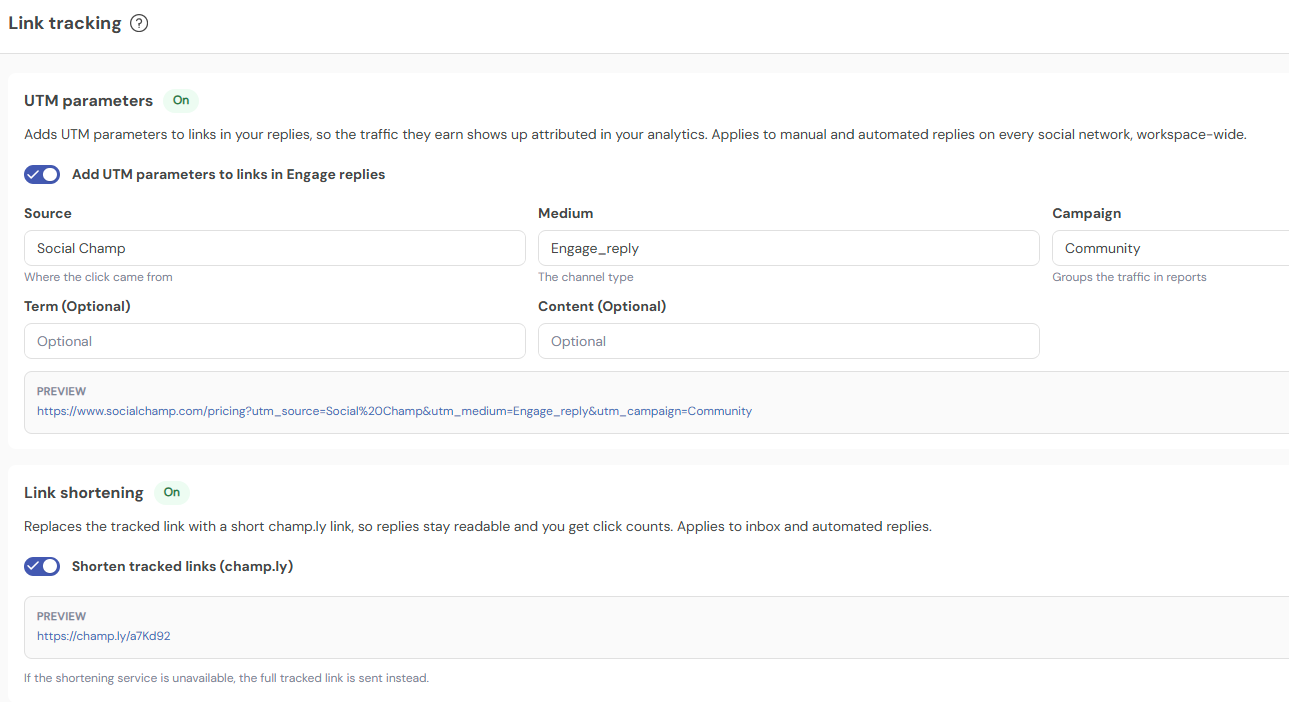
4. Link Tracking
Adds UTM parameters to links in your replies, so the traffic they earn shows up attributed in your analytics. Applies to manual and automated replies on every social network, workspace-wide.
Link shortening can also be enabled.
5. Automation Rules
Social Champ offers the Automation Rules feature within Engage, designed to help you effectively manage and categorize incoming messages, comments, and reviews. To get a detailed idea of it click here.
Organize and Filter Conversations
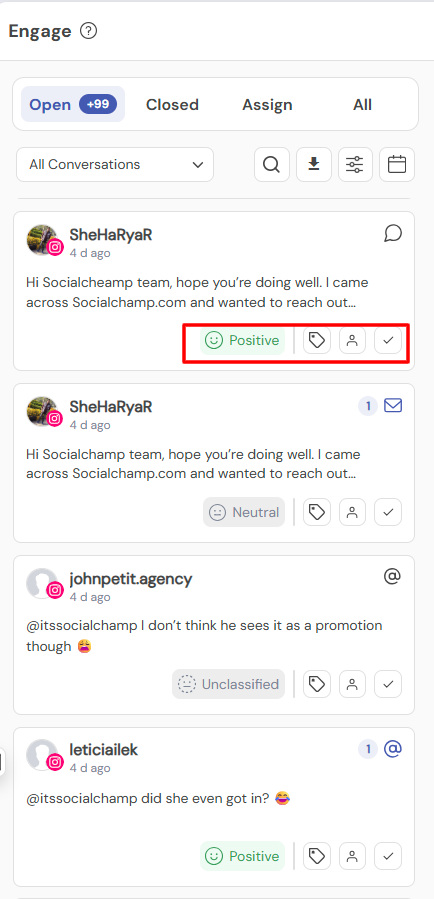
- From the bottom of a message or comment, or mention you can mark it as read, assign it to a specific team member, assign a label to the chat.
Also Sentiment can be seen on the Conversation that can also be altered manually.
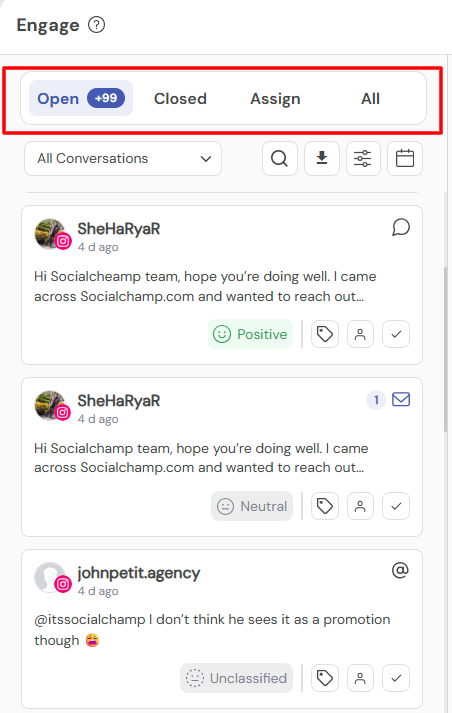
- You can filter conversations based on their status: Open, Closed, Assign, and All.
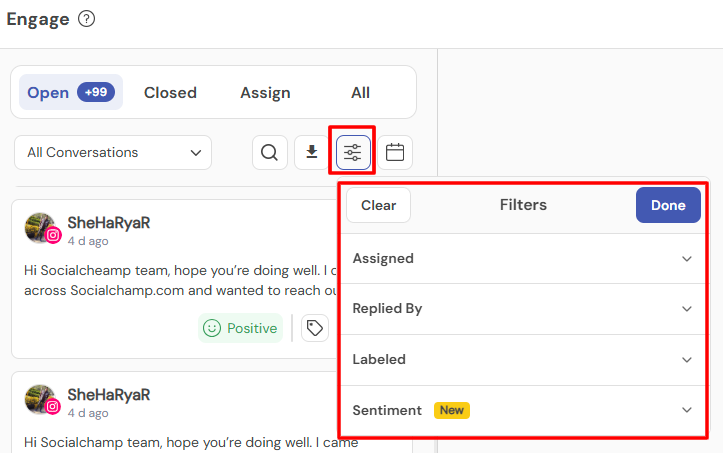
- Further filters can be applied to view messages as per the assigned, replied by, labeled, or sentiment chats.
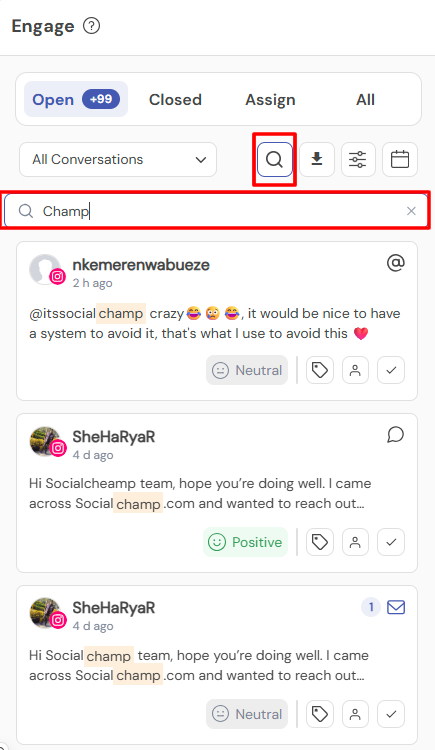
- Additionally, you can search for specific keywords within your messages, comments, and reviews.
Note: The Engage feature is available for Instagram Business accounts, Facebook Pages, LinkedIn Pages, Google My Business Profiles, TikTok, Threads, YouTube and Whatsapp Business account.
Here is a table summarizing the features available for each platform within Engage:
| Features | Facebook Pages | Instagram Business Account | LinkedIn Pages | Google My Business Profile | TikTok | Threads | YouTube | WhatsApp Business Account |
| Direct Messages | Yes | Yes | – | – | – | – | – | Yes |
| Direct Messages Like | – | Yes | – | – | – | – | – | – |
| Audio Notes | Yes | Yes | – | – | – | – | – | – |
| Post Like | Yes | – | Yes | – | – | – | – | – |
| Post Delete | Yes | – | Yes | – | – | – | – | – |
| Comment Like | Yes | – | Yes | – | Yes | – | – | – |
| Comment Reply | Yes | Yes | Yes | – | Yes | Yes | Yes | – |
| Comment Delete | Yes | Yes | Yes | – | – | – | Yes | – |
| Reply in Private | Yes | Yes | – | – | – | – | – | – |
| Reviews | – | – | – | Yes | – | – | – | – |
| Reviews Reply | – | – | – | Yes | – | – | – | – |
| Mentions | Yes | Yes | Yes | – | Yes | – | – | – |
Great! Now you know how the Engage Feature works. 🤩
Get the Support you need:
Having trouble? Got a question? We’re here to support you every step of the way. Simply email us at [email protected] and we’ll get back to you.
Social Champ Team Collision feature allows you to organize your social media inbox i.e., Engage more efficiently. In this guide, Read more
Social Champ offers the Automation Rules feature within Engage, designed to help you effectively manage and categorize incoming messages, comments, Read more
Hey Champs! Struggling with connecting your WhatsApp Business account to Social Champ? We have your back. This guide helps you Read more
Engage Label Analytics in Social Champ helps you track and analyze conversations based on the labels assigned within the Engage Read more