
Engage Label Analytics in Social Champ helps you track and analyze conversations based on the labels assigned within the Engage Inbox. This feature provides valuable insights into how different types of conversations, such as urgent queries, support requests, or feedback, are categorized and managed by your team.
By reviewing Label Insights, you can quickly understand the volume of labeled vs. unlabeled conversations, identify the most used labels, and evaluate how effectively your team organizes interactions. This helps improve workflow efficiency, response prioritization, and customer support management.
Access Engage Label Analytics
- Log in to your Social Champ account.
- Navigate to the Analytics section from the left sidebar.
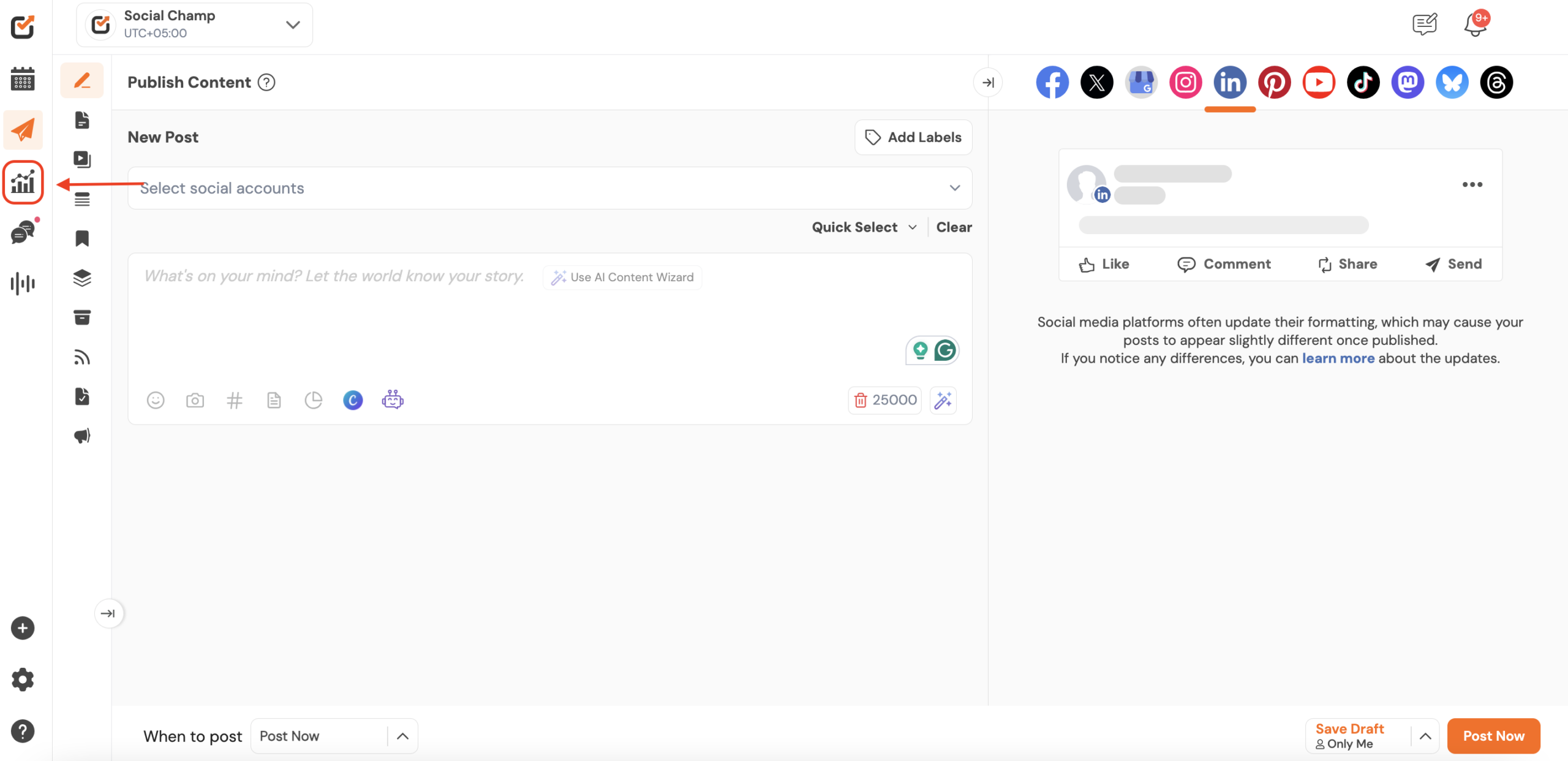
- Click on Engage Label Analytics under the Label Analytics category.
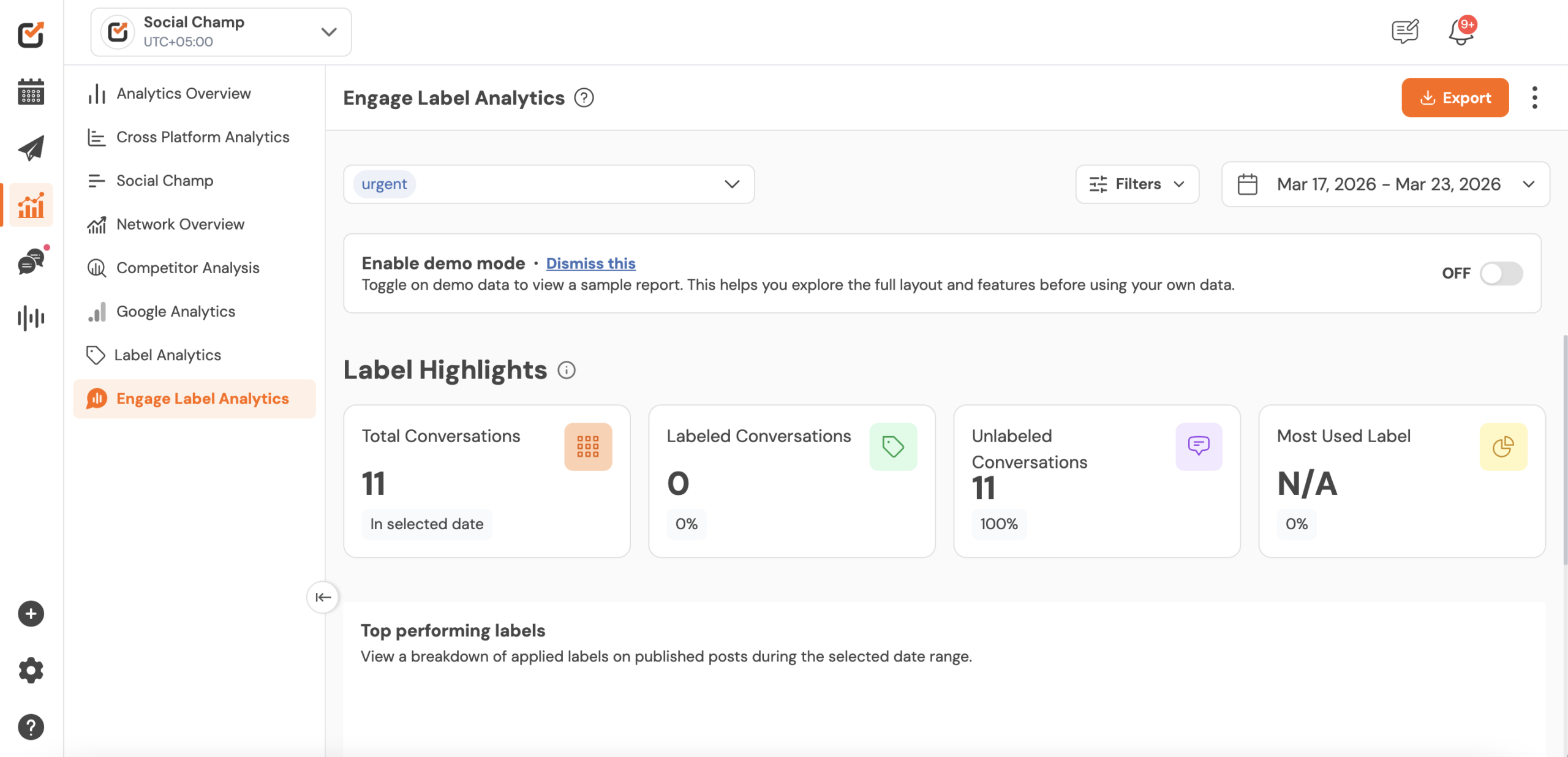
Once opened, you will see the Label Insights dashboard, which displays conversation statistics and label performance.
Apply Label Filters
Filters allow you to analyze conversations associated with a specific label.
- At the top of the page, locate the Label dropdown menu.
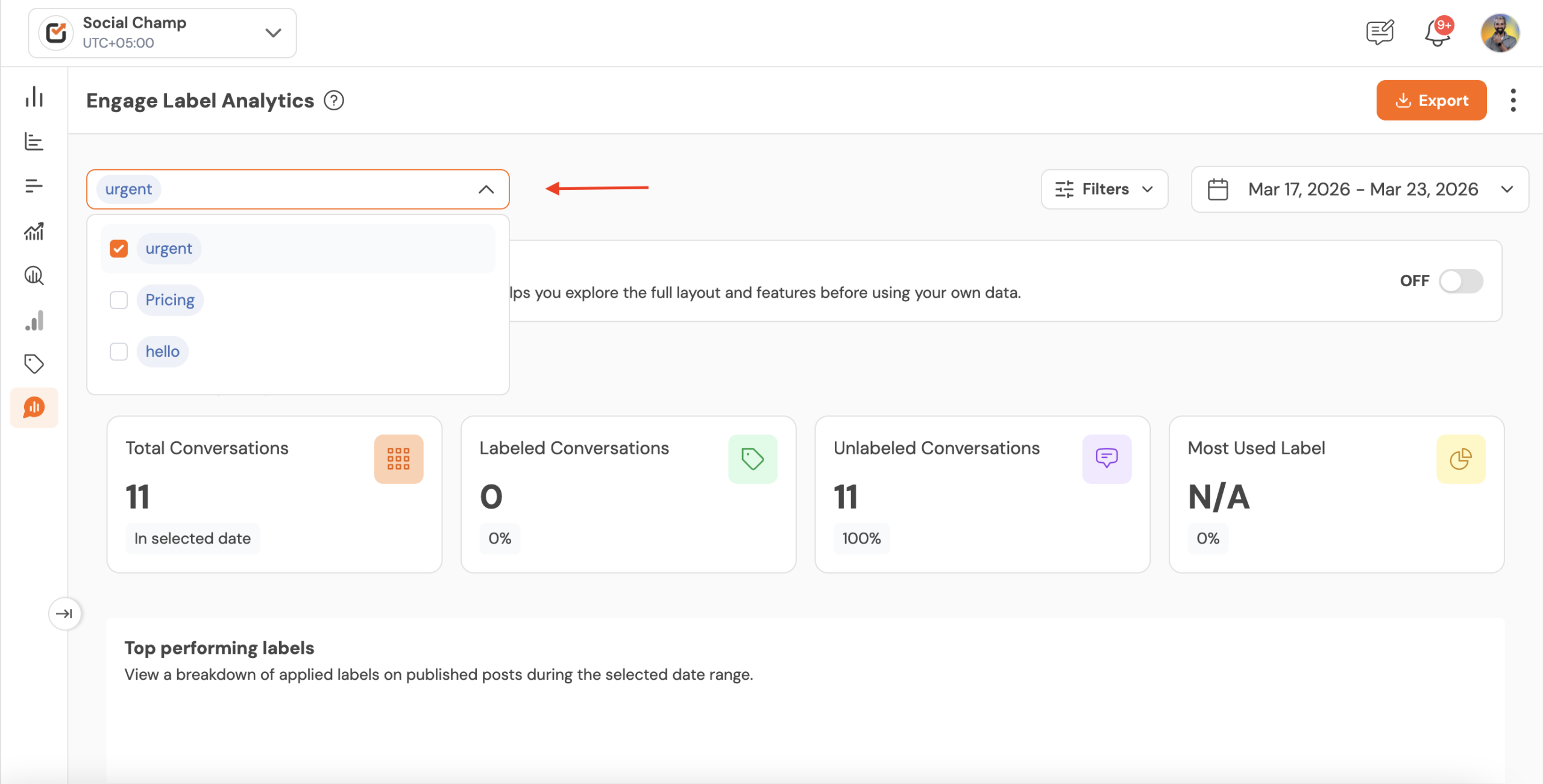
- Click the dropdown and select the label you want to analyze (for example, Urgent).
- The dashboard will update analytics based on the selected label.
Adjust the Date Range
You can customize the reporting period to review analytics for a specific timeframe.
- Click on the Date Range selector located in the top-right corner.
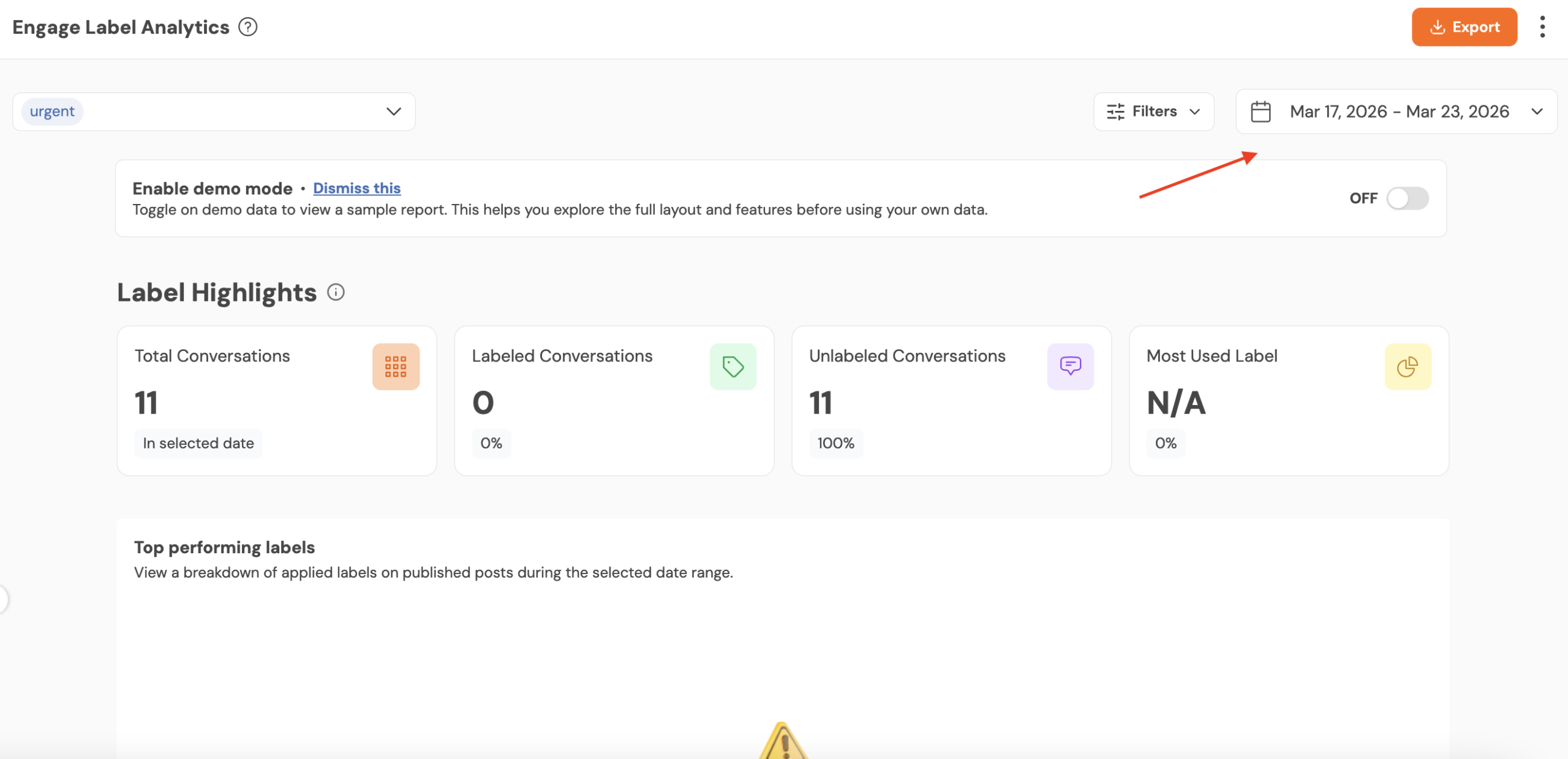
- Choose a custom date range or select from preset options.
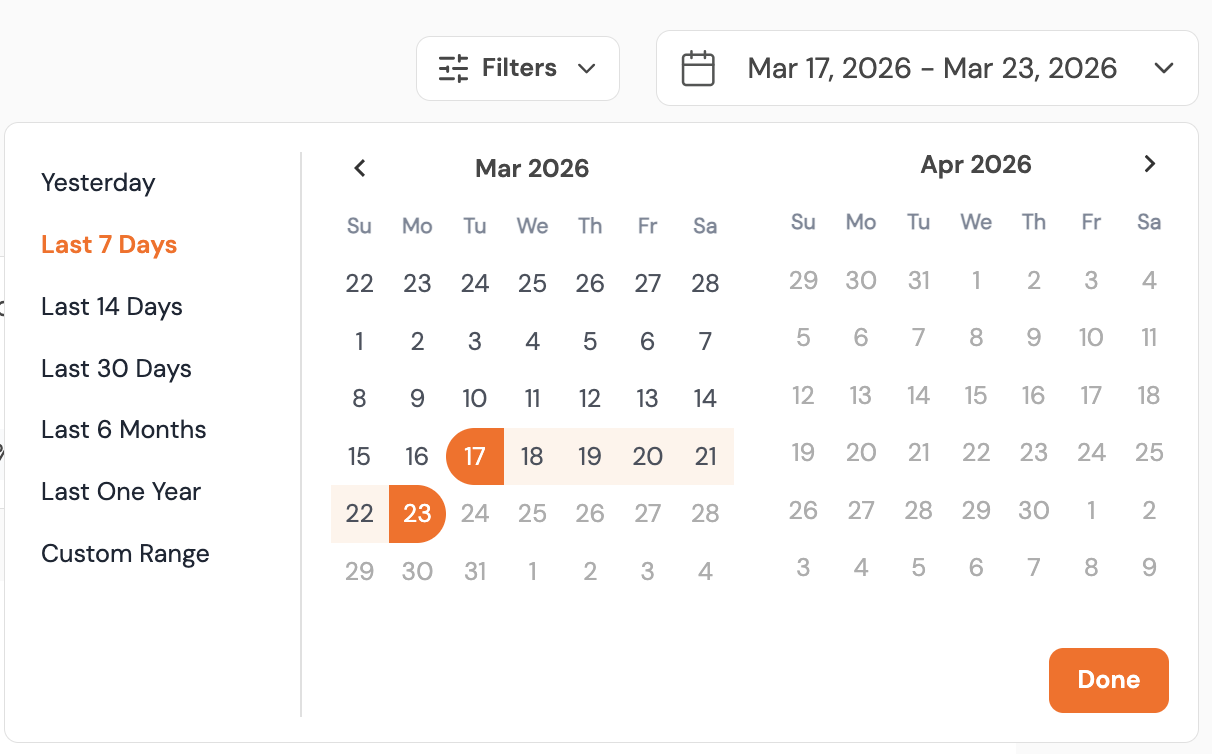
- The analytics data will automatically refresh according to the selected period.
Understand Label Highlights
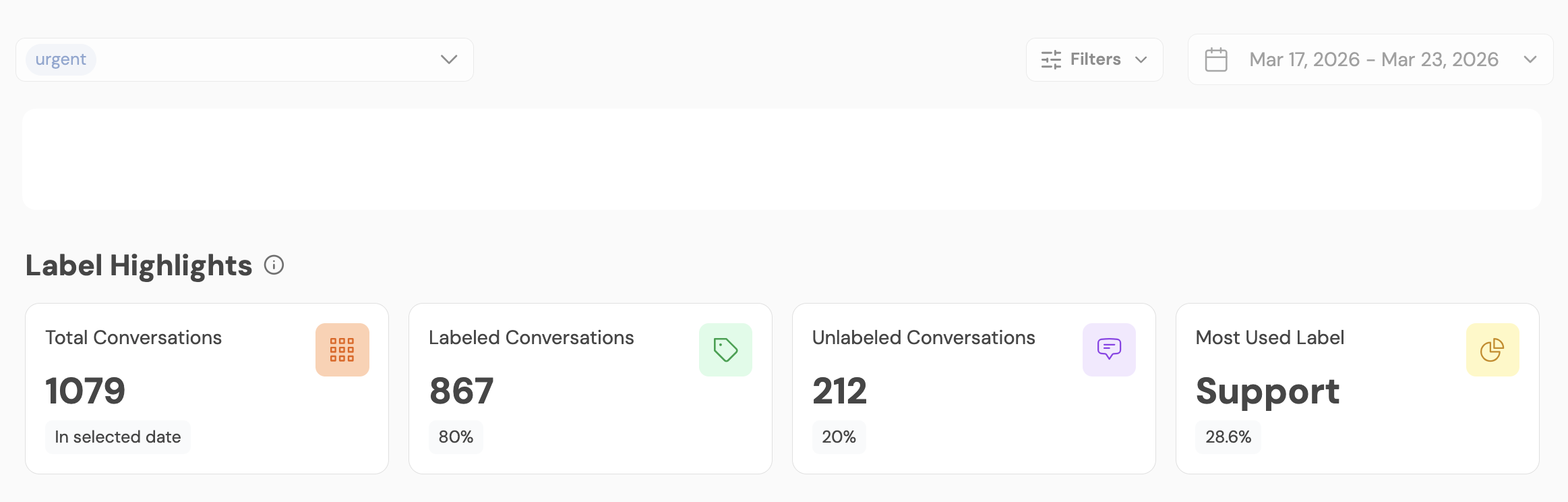
The Label Highlights section provides a quick summary of conversation data.
Key Metrics Explained
- Total Conversations
Displays the total number of conversations received during the selected timeframe. - Labeled Conversations
Shows the number and percentage of conversations that have labels assigned. - Unlabeled Conversations
Indicates conversations that do not have any labels applied, helping identify gaps in categorization. - Most Used Label
Displays the label most frequently used across conversations within the selected period.
Review Top Performing Labels
This section shows a breakdown of labels applied to conversations and helps you identify which categories are most frequently used.
- Scroll down to the Top Performing Labels section.
- Review the visual representation of label usage.
- Use this information to optimize labeling strategies and team workflows.
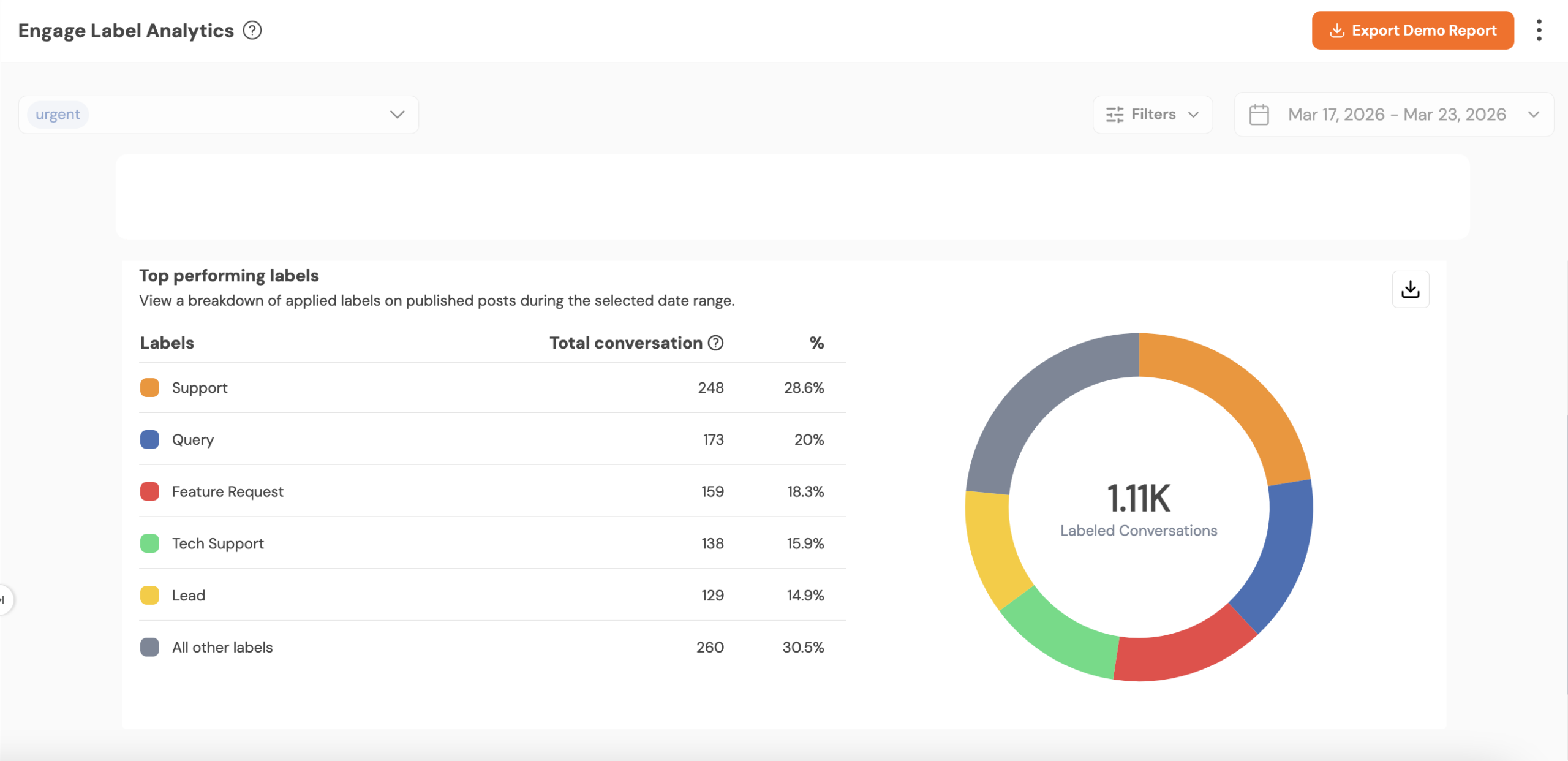
This insight helps teams determine which types of conversations occur most often and where support resources should be focused.
Engage Label Analytics helps teams stay organized and gain actionable insights into customer interactions by tracking how conversations are categorized. By regularly reviewing label performance, you can improve team productivity, response prioritization, and overall engagement management.
If you’re looking to further optimize your workflow, you can also explore related features such as Engage Inbox, Conversation Labels, and Team Collaboration tools within Social Champ.
Get the Support You Need
Having trouble? Got a question? We’re here to support you every step of the way. Simply email us at support@socialchamp.com, and our team will be happy to assist you.
Hello Champs! Welcome to our comprehensive guide on how to leverage Social Champ’s Engage feature to elevate your social media Read more
Social Champ Team Collision feature allows you to organize your social media inbox i.e., Engage more efficiently. In this guide, Read more
Social Champ offers the Automation Rules feature within Engage, designed to help you effectively manage and categorize incoming messages, comments, Read more
Hey Champs! Struggling with connecting your WhatsApp Business account to Social Champ? We have your back. This guide helps you Read more