
This guide shows you how to add a custom thumbnail or select a frame from your video when creating posts in Social Champ. This helps your content stand out and drive more engagement.
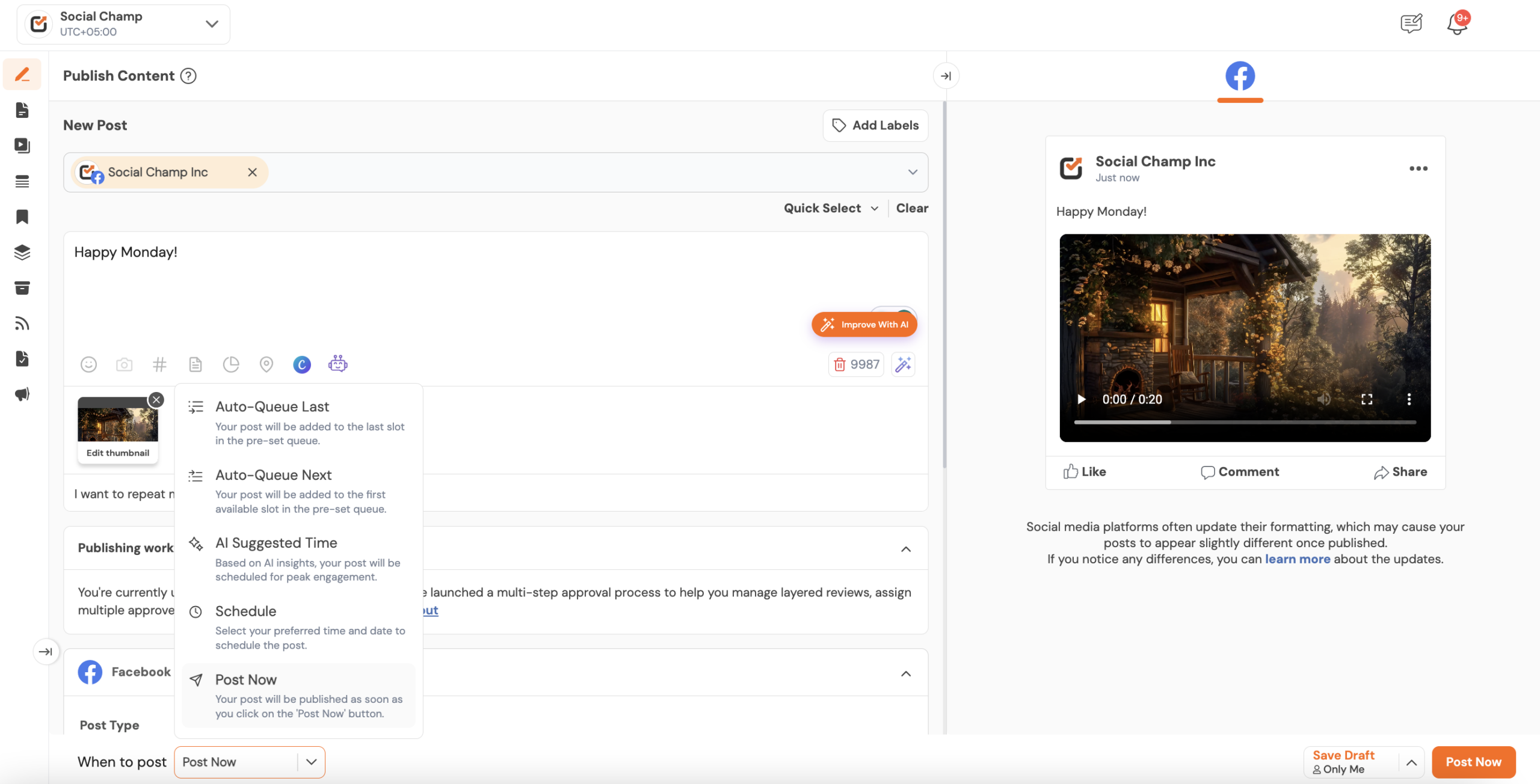
- Log in to your Social Champ account, and you’ll land on the Publish dashboard. From there, navigate to the media upload option, which is located under the caption box (camera icon).
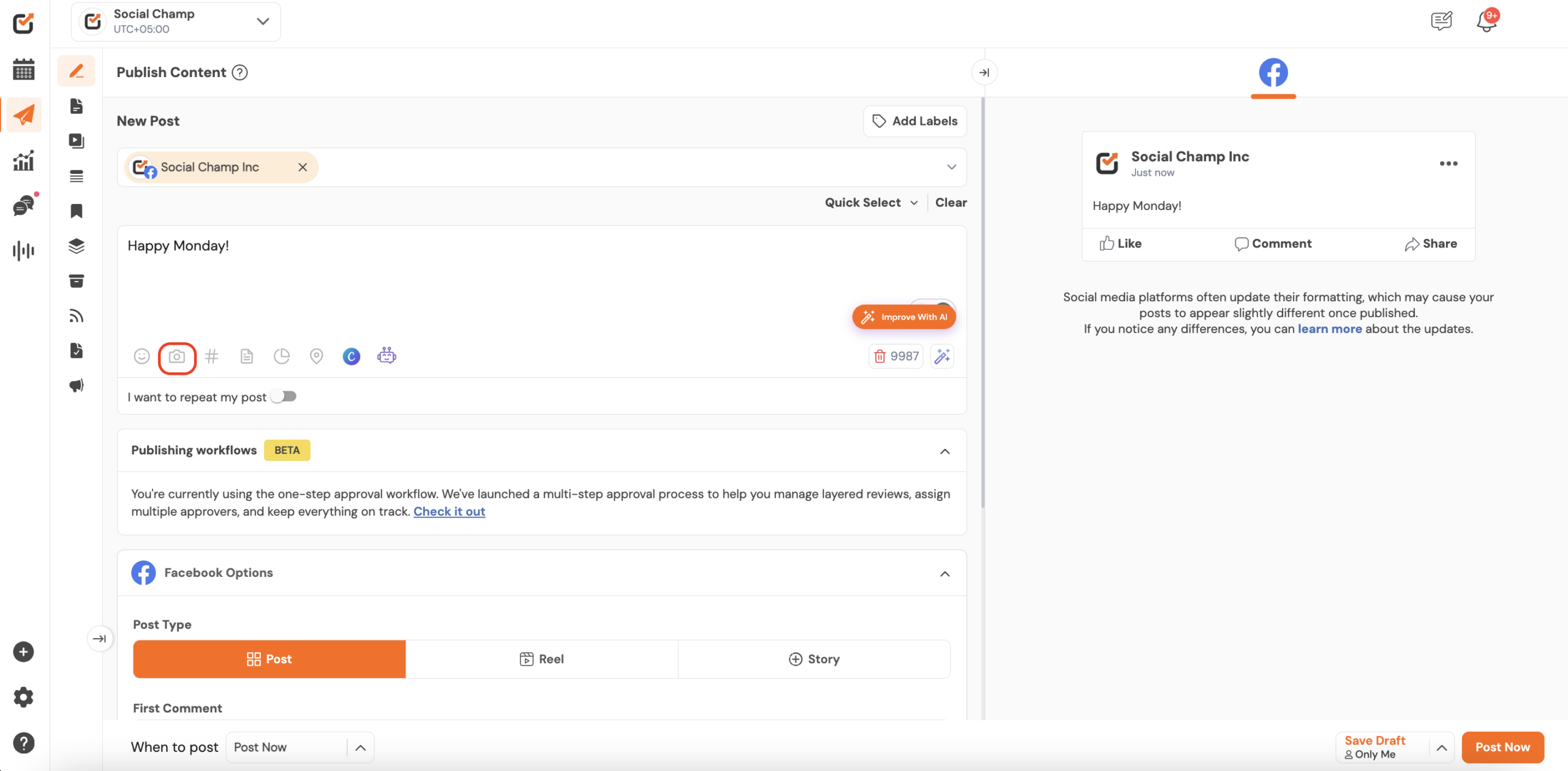
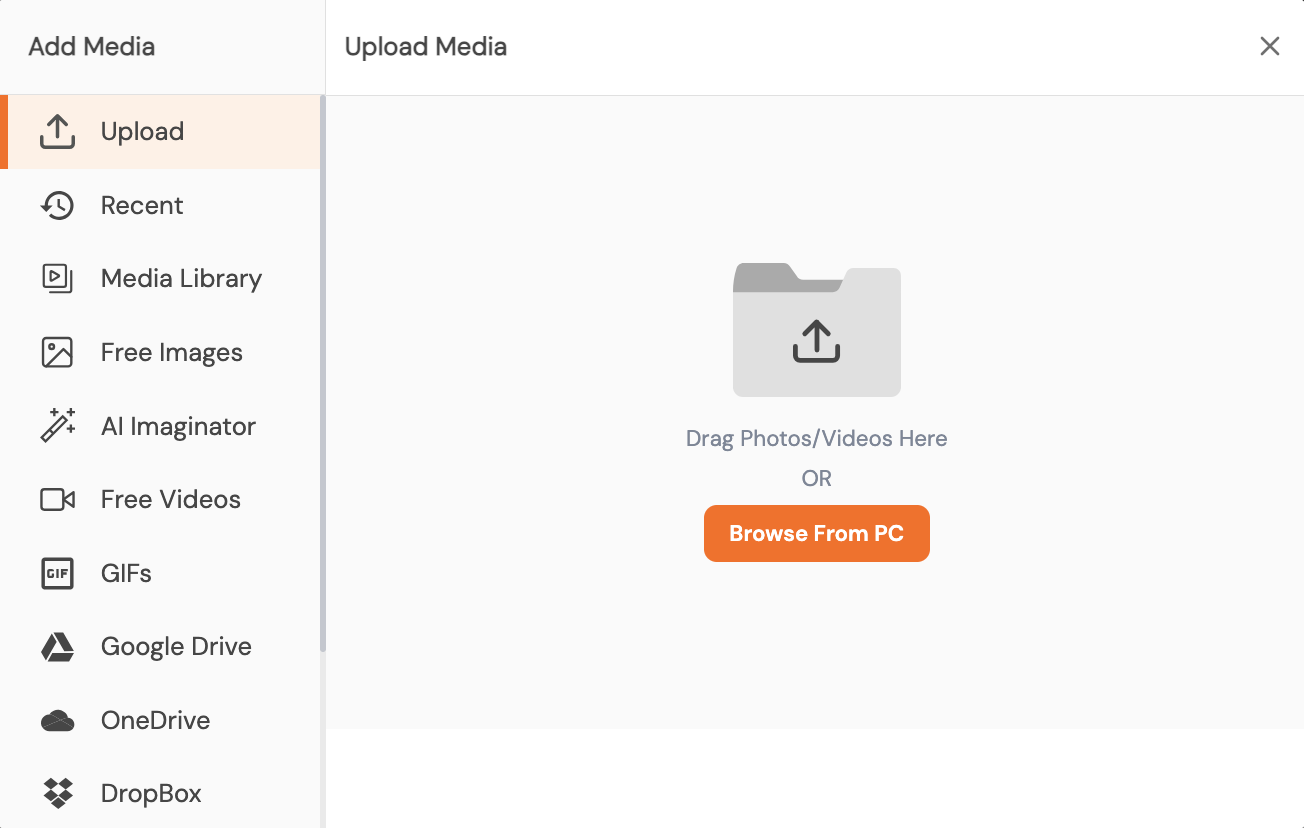
- Upload a video by dragging it into the composer or selecting it from the media library.
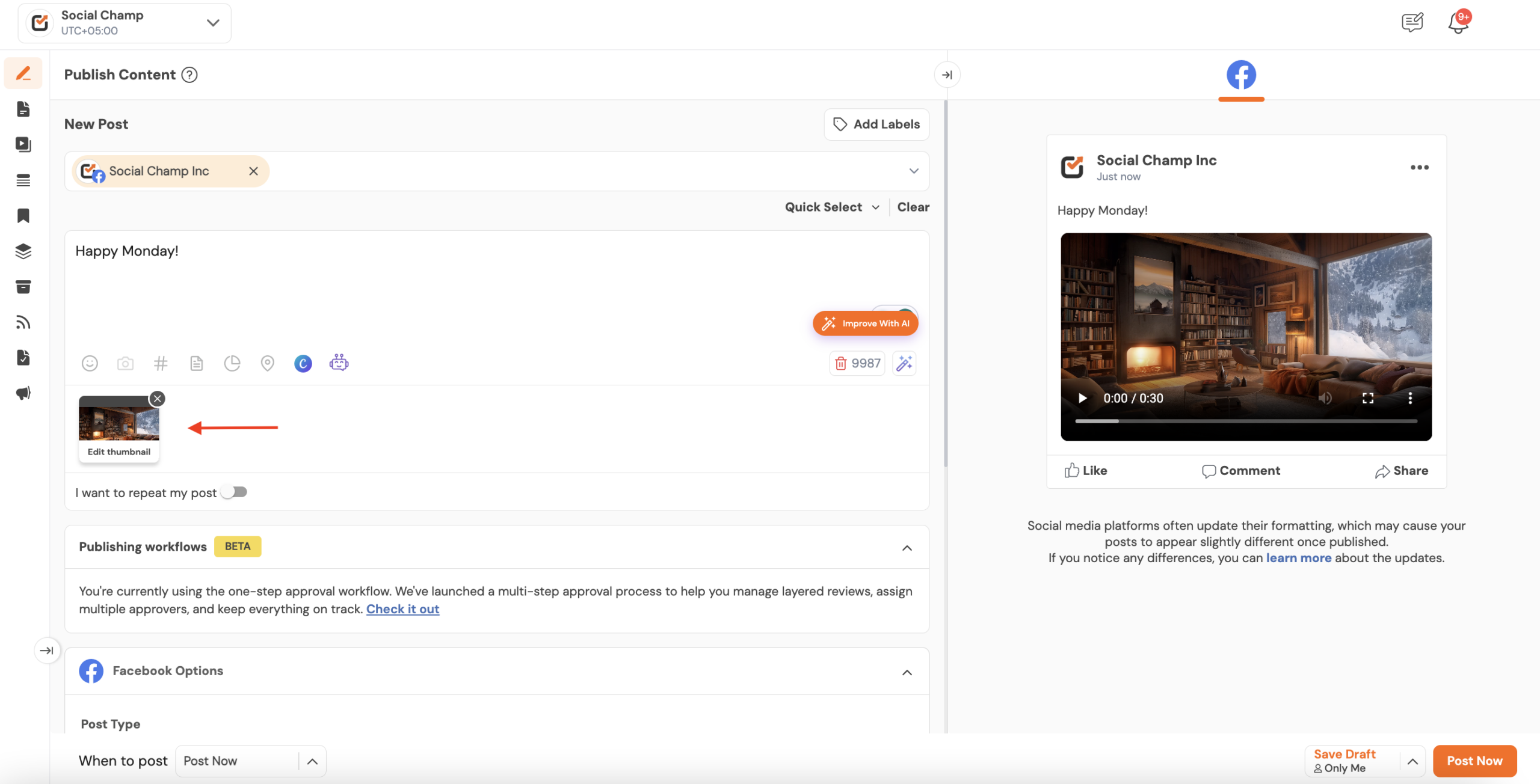
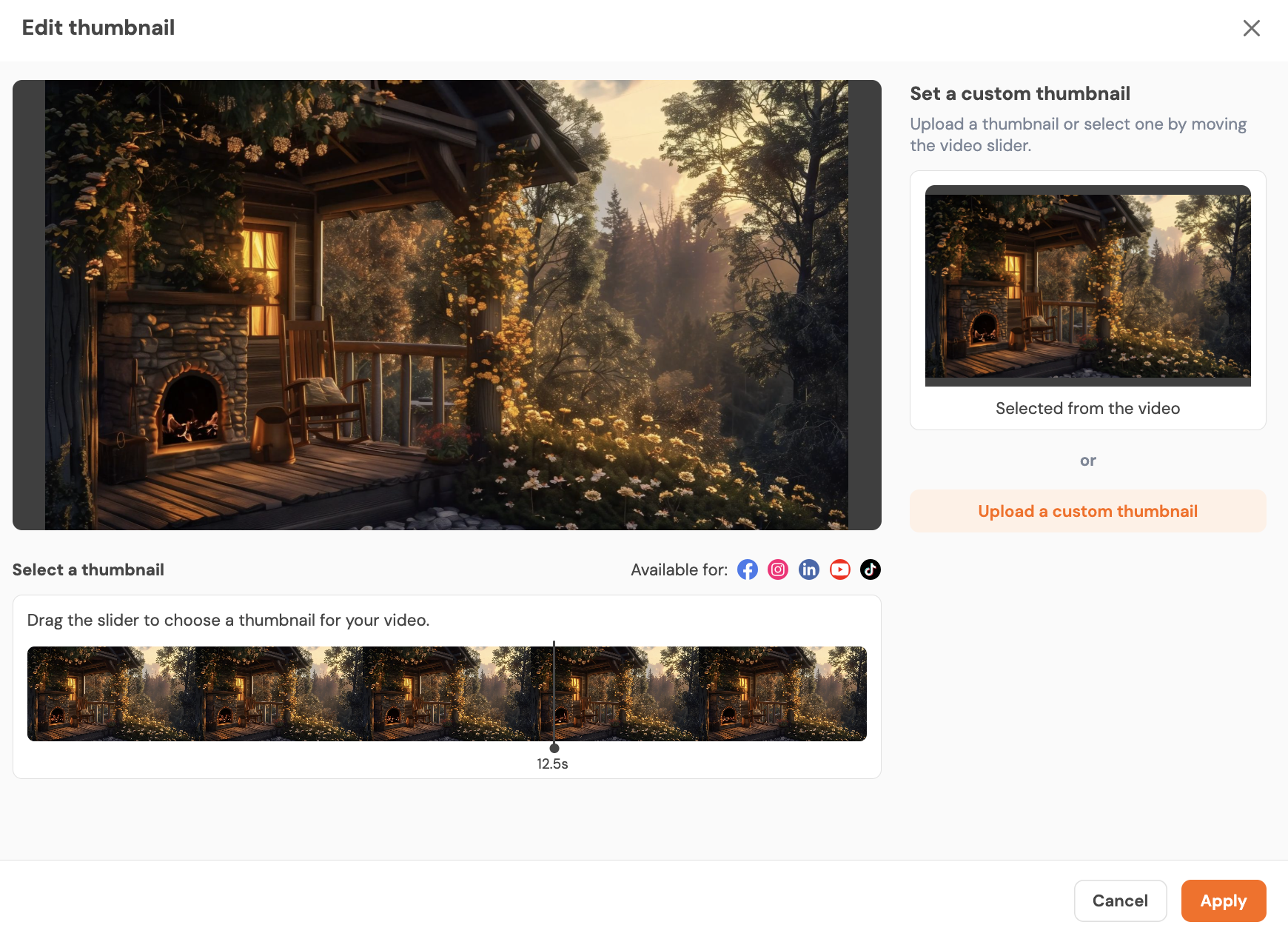
- Scroll down to find the Thumbnail section below the video preview.
- Click “Edit Thumbnail” to view available thumbnail options.
- Choose “Upload Thumbnail” to add a custom image or “Choose from Video” to select a frame.
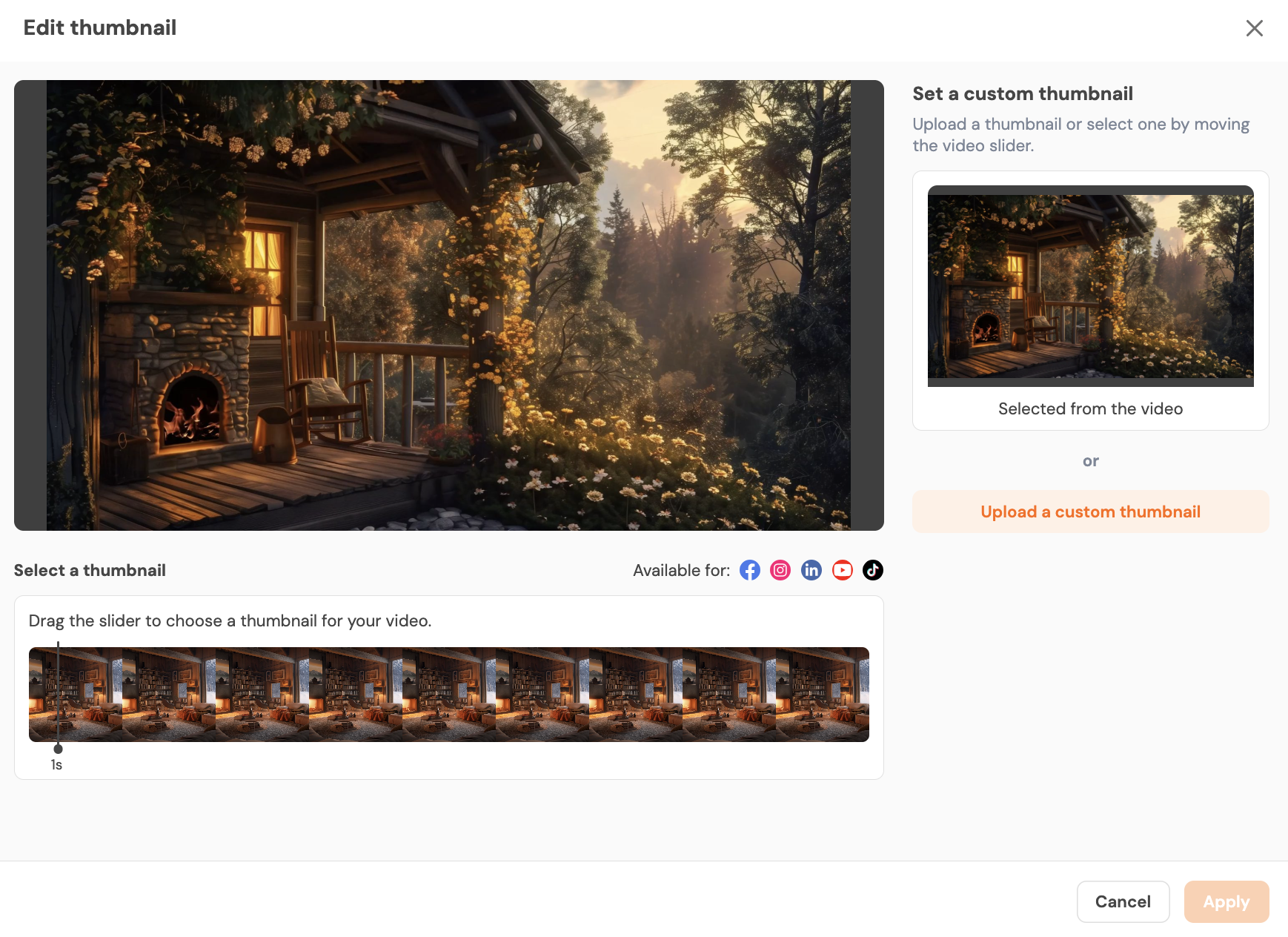
- Select an image from your device or slide through the video to pick a frame.
- Preview the thumbnail to make sure it appears clear and aligned.
- Click “Apply Thumbnail” to save the selected thumbnail.
- Complete your post by adding text, hashtags, and scheduling preferences.
- Click “Publish” or “Schedule” to post your video with the chosen thumbnail.
By following these steps, you’ve successfully added a thumbnail to your video post in Social Champ. This enhances your visual branding and improves audience engagement.
Note: Custom thumbnails are available for Facebook, Instagram, LinkedIn, and YouTube (Videos & Shorts).
Get the Support You Need:
Having trouble? Got a question? We’re here to support you every step of the way. Simply email us at support@socialchamp.com, and we’ll get back to you.
Enhance your content strategy and engage your audience with YouTube video scheduling. Follow this step-by-step guide to schedule videos on Read more
Hey, Champs! Social Champ now introduces its much-awaited feature ‘Shareable Drafts’, which allows you to share your saved scheduled posts Read more
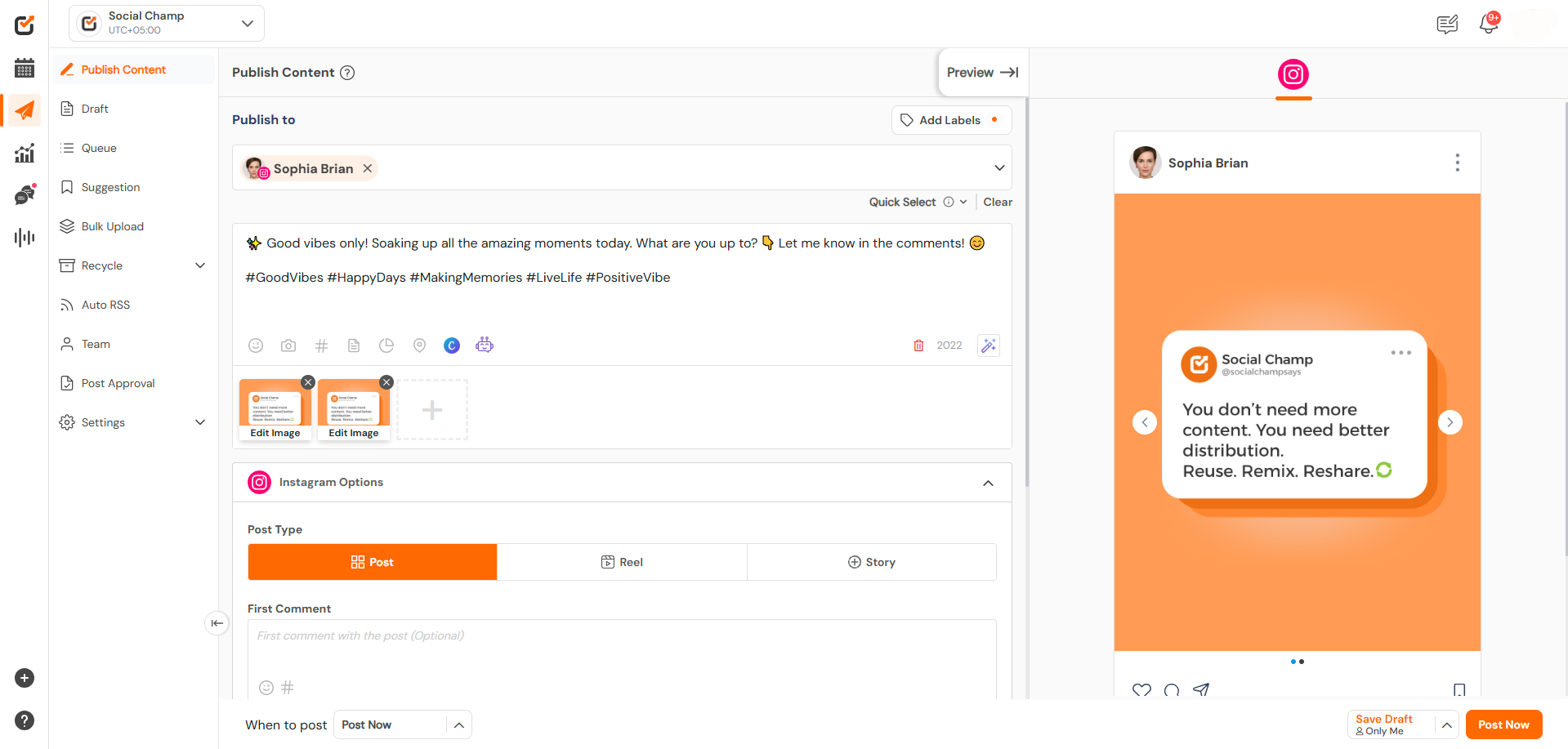
This guide will help you schedule carousel posts (multiple images) to your Instagram Business or Creator account using Social Champ. Read more
Social Champ offers a free plan and three paid plans. The number of posts you can schedule using each plan Read more