
Hey Champs, the One-Step Post Approval workflow. This guide will walk you through quickly and efficiently reviewing and approving posts.
The One-Step Approval system is designed to simplify collaboration by allowing Admins or Owner to review content before it goes live. In this guide, you’ll learn how to locate pending posts, review content, and approve them in just a few clicks.
By the end of this tutorial, you’ll be able to confidently manage and approve posts within your workspace without any confusion.
Let’s get started on how post-approval works.
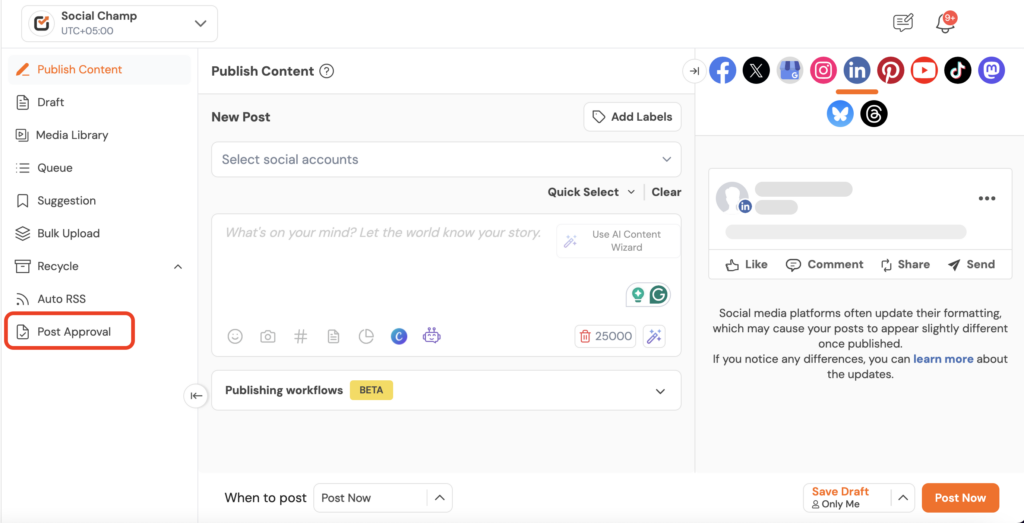
- Log in to the platform, and you will be directed to our main content dashboard. Select the Post-Approval feature from the left panel.
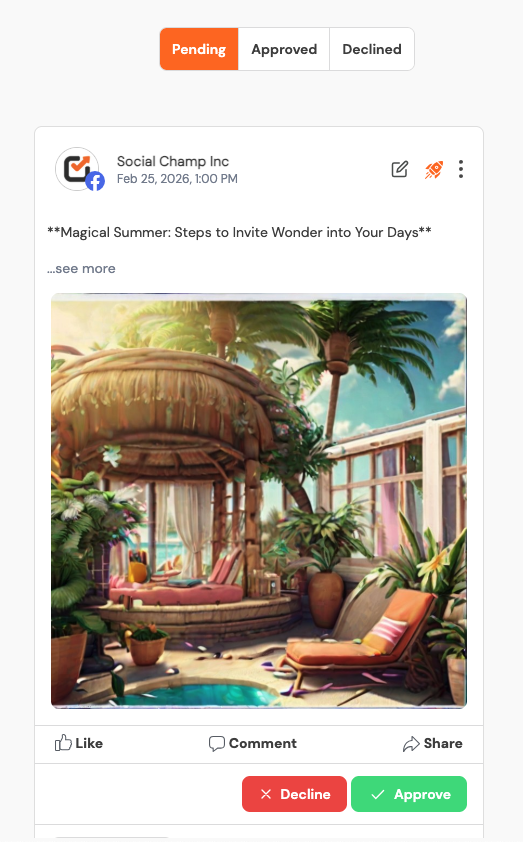
- In the Pending section, you can find all the posts submitted for approval. Now, the account owner/admin has the authority to approve or decline the posts that have been submitted for approval.
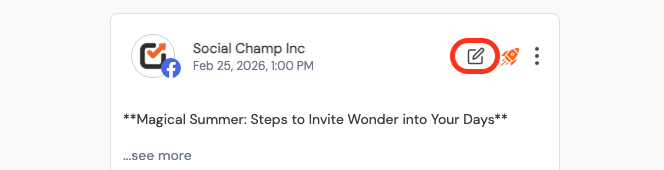
- You can also edit posts in the pending stage. By clicking the edit icon for a pending approval post, you can make changes to the content before giving it your final approval.
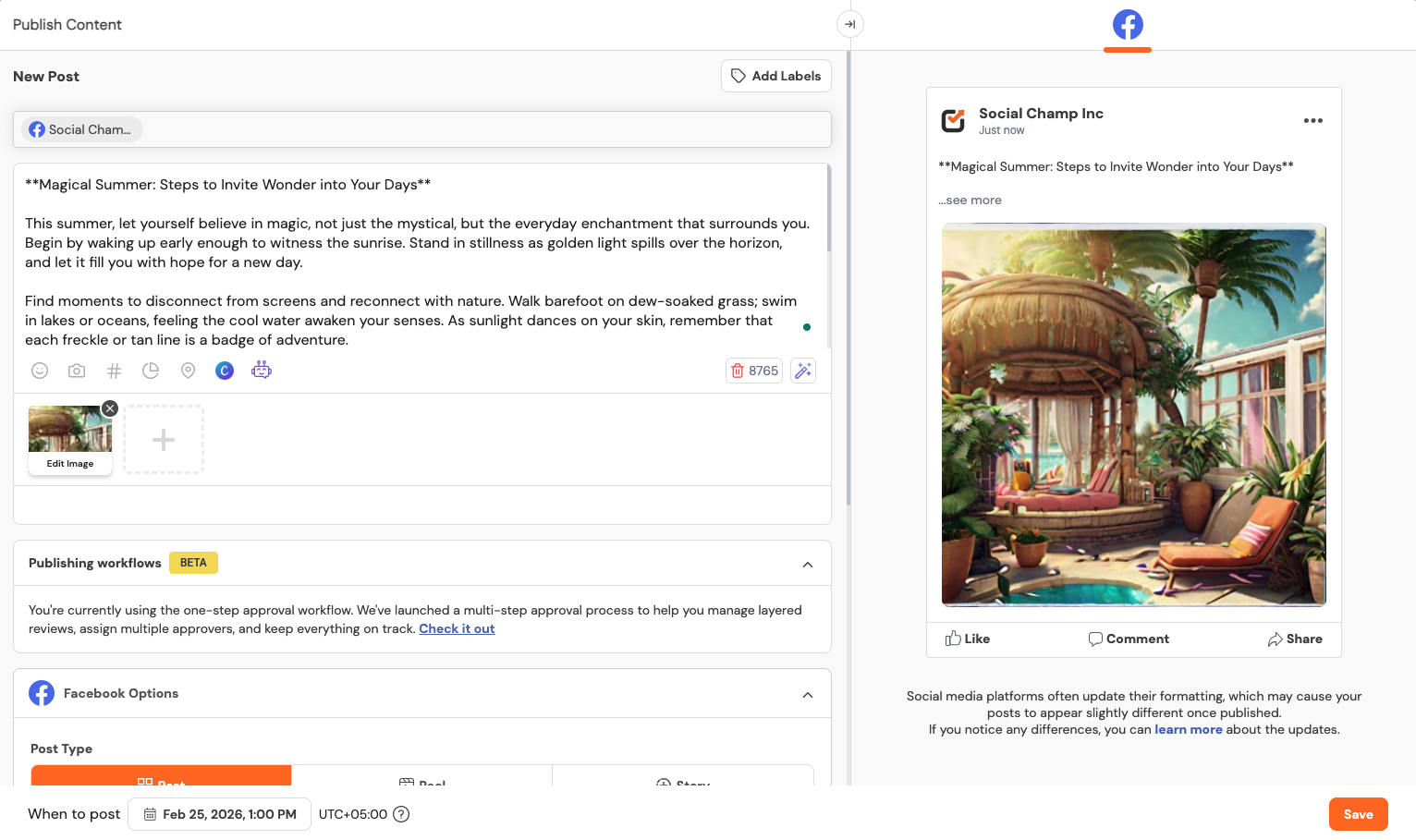
- A window will pop-up to compose or make changes. After making the changes, you can hit save. (Please note: This does not approve the post but simply makes edits to it.)
- Posts can also be filtered. Simply click the “Filter By” button in the top-right corner to filter by Team Members, Post Type, or Social Accounts.

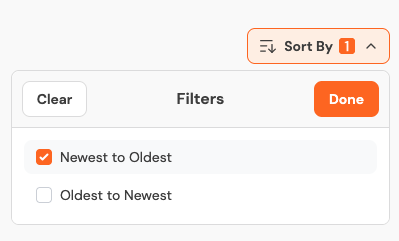
- You can sort posts in the Post Approval tab. Click the “Sort By” button in the top-right corner to arrange posts from Newest to Oldest or Oldest to Newest.
- If you decline a post, you can add a comment for the team member so they can review it and make the required changes.
Note: After making the necessary changes to a declined post, it will be moved back to the Pending approval tab for the admin or owner to review and approve.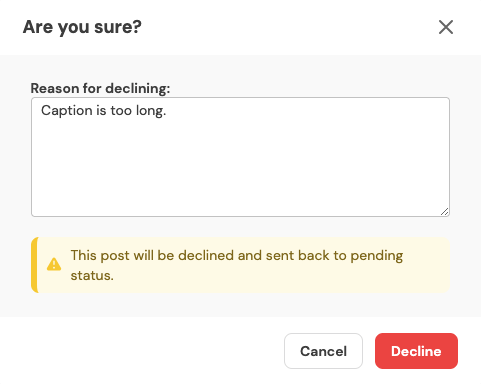
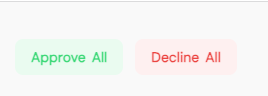
- If you want to approve or decline all posts at once, simply click the “Approve All” or “Decline All” button.
- If you want to see posts that were previously approved or declined, you can check them in their respective tabs at the center top.

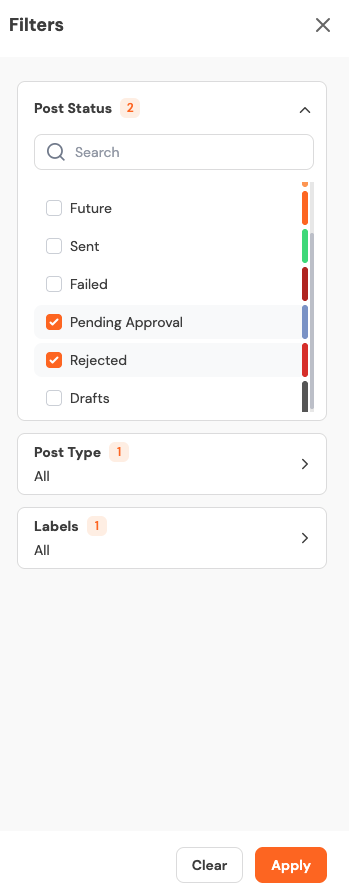
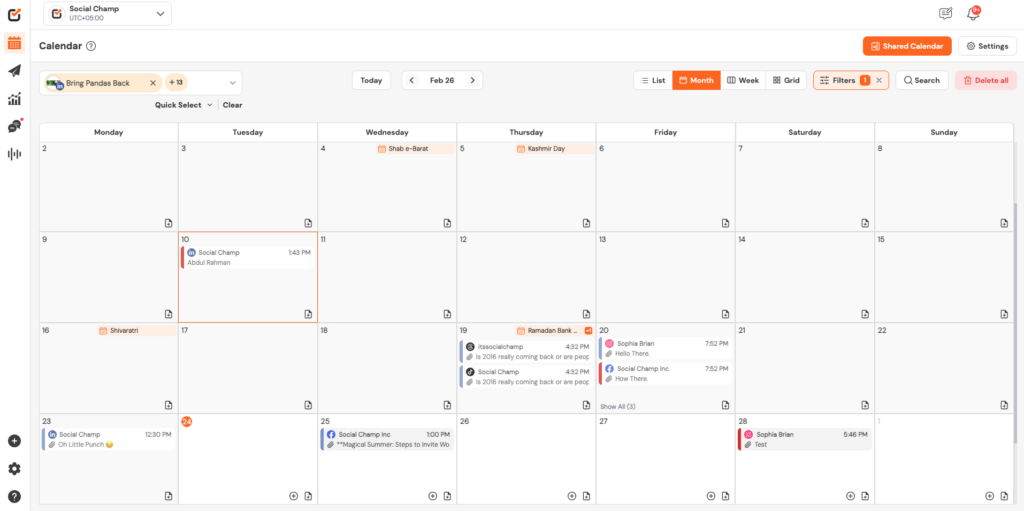
- You can also see posts awaiting approval in the Calendar view. Just use the Post Status filter to sort posts by their status, such as Pending Approval or Rejected.

- Once you click on Filters, you will be able to filter posts by Post Status, Post Type, and Labels. Go to Post Status and select Pending Approval or Rejected to see those posts in the Calendar view.
- Please note: If a post is sent for approval and is neither approved nor declined, it will stay in the Pending section until someone takes action.
Great! You now understand how the Post Approval process works.
Get the Support you need
Having trouble? Got a question? We’re here to support you every step of the way. Simply email us at Support@socialchamp.com, and we’ll get back to you.
Hey Champs, The post-approval feature is an exclusive system designed to help the account owner/admin control the flow of content Read more